Transcribe MP3 to Text: Free, Paid and API Options Compared
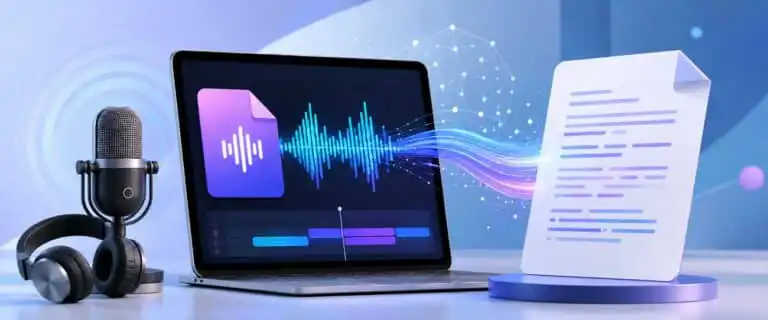
To properly transcribe an MP3 to text, you need more than an upload box. The right option depends on file size, audio quality, speaker labels, timestamps, export formats, privacy requirements, and whether you want a one-off transcript or an API workflow.
This guide compares free, paid, and developer options for turning MP3 audio into text. It uses the DIY AI 2026 speech-to-text scoring framework, covering accuracy, speed, diarisation, punctuation, noise handling, export flexibility, cost efficiency, and real-time performance. For the wider category view, see our guide to the best AI speech-to-text tools.
The best way to transcribe an MP3 file to text
For most people, the best MP3 transcription workflow is simple: upload the MP3, check the first few minutes for names and speaker changes, then export TXT or DOCX for editing and SRT or VTT if you need captions. The part people get wrong is choosing a tool based only on headline accuracy.
A podcast editor needs timestamps and captions. A researcher needs speaker labels. A developer needs predictable API billing and rate limits. A solicitor, clinician, or HR team needs much tighter privacy controls than someone transcribing a public YouTube interview.
| Use case | Best option | Why |
|---|---|---|
| Free MP3 transcription for personal use | Local Whisper or a limited free web plan | Good for occasional files, but expect limits on file size, imports, editing, or setup. |
| Highest general accuracy | OpenAI Whisper | Scores 9.2/10 overall in our speech-to-text dataset and is strongest for finished transcript accuracy. |
| Large-scale API transcription | Deepgram | Fast, developer-friendly, and strong for batch and real-time speech systems. |
| Meetings and team notes | Otter.ai | Better as a meeting workspace than a pure MP3 transcription engine. |
| Human-verified transcripts | Rev AI or Rev human transcription | Useful when a rough AI transcript is not enough and manual review is worth the cost. |
MP3 transcription options compared
The table below focuses on practical buying factors rather than marketing claims. Prices are shown in dollars because most transcription APIs publish pricing in USD. Always recheck the provider page before committing to spend, especially for API work, where add-ons and volume tiers can significantly affect the actual cost.
| Provider | DIY AI score | Star rating | Typical cost per hour | File limits and workflow notes | Best fit |
|---|---|---|---|---|---|
| OpenAI Whisper | 9.2/10 | 4.6/5 | From about $0.18/hour with gpt-4o-mini-transcribe, about $0.36/hour with gpt-4o-transcribe, or about $1.02/hour for real-time Whisper. | API file uploads are limited to 25 MB, so long MP3s usually need to be compressed, split, or processed via a chunking workflow. | Accurate transcripts, multilingual audio, developer-controlled workflows, and local privacy setups. |
| Deepgram | 9.1/10 | 4.6/5 | Nova-3 monolingual pre-recorded audio is about $0.29/hour on a pay-as-you-go basis before add-ons. Streaming is about $0.46/hour. Speaker diarisation adds cost. | Pre-recorded audio supports much larger files than OpenAI’s direct upload limit, but long jobs still need sensible timeout and retry handling. | APIs, large batches, voice products, live captions, contact centre audio, and real-time workflows. |
| Otter.ai | 8.1/10 | 4.1/5 | Subscription-based. Pro can work out cheaply if you use most of the monthly minutes, but it is not true per-hour API pricing. | Free and Pro plans have import and conversation limits. Business plans are better suited for heavier file-import workflows. | Meetings, shared notes, speaker names, summaries, collaboration, and non-technical users. |
| Rev AI | 7.9/10 | 4.0/5 | Rev AI Reverb starts at about $0.10-$0.20/hour, depending on the model. Whisper options are about $0.30/hour. Human transcription is much higher at $1.99/minute. | Rev AI supports common media formats and high-duration jobs, with stricter limits depending on upload route and transcription type. | Budget AI transcription, human-reviewed transcript workflows, legal media, and jobs where review quality matters more than low API cost. |
How to transcribe an MP3 to text step by step
The basic process is the same across most tools, but small choices affect the transcript quality.
- Check the MP3 before uploading. Listen to the first minute. If the audio is distorted, very quiet, or full of crosstalk, no transcription tool will fully fix it.
- Decide whether you need speaker labels. A single-person voice note can be plain text. Interviews, meetings, podcasts, and research calls need diarisation or manual speaker correction.
- Choose the output format first. Use TXT or DOCX for editing, SRT or VTT for captions, CSV for structured review, and JSON for developer workflows.
- Upload or send the file through an API. For large MP3 files, check the file size limits before attempting an upload to avoid wasting time on a failed upload.
- Review names, numbers, and specialist terms. AI transcription still struggles with brand names, product names, medical terms, legal references, and people talking over each other.
- Export the final transcript. Keep the original MP3 and transcript together if the file may need to be audited, reviewed, captioned, or reprocessed later.
The practical rule is simple: use the cheapest automatic transcription that gives you enough structure. Do not pay for human review if the transcript is only for internal notes. Do not rely on a raw AI transcript if the text will be quoted, published, used in evidence, or sent to a client.
Free ways to transcribe MP3 to text
Free MP3 transcription is possible, but “free” usually means one of four trade-offs: file limits, privacy compromise, manual setup, or weaker editing features.
| Free option | What works well | What to watch |
|---|---|---|
| Local Whisper on Mac, Windows, or Linux | Good accuracy, no need to upload sensitive MP3 files, strong control over the workflow. | Requires setup, local processing power, and extra tooling for polished exports or speaker labels. |
| Free online transcription tools | Fast for short, non-sensitive clips where perfect formatting does not matter. | Often limited by file size, file count, queue speed, export options, or unclear retention policies. |
| Otter Basic | Useful for short meetings and quick tests, with speaker identification and a friendly interface. | Import limits make it poor for repeated MP3 file transcription. |
| Manual playback plus dictation | Can work in a pinch for a tiny clip. | Not recommended for real work. It introduces errors because the system hears the speaker’s audio through another microphone or virtual route. |
How to transcribe MP3 to text for free on Mac
Mac users have two realistic routes. The easy route is a Cloud tool with a free plan, but the audio is recorded on your machine. The private route is a local Whisper-based app or command-line setup that keeps the MP3 local but requires more effort.
Do not confuse Mac dictation with file transcription. Dictation is designed for live speech into a text field. It is not a proper MP3-to-text workflow for podcasts, interviews, lectures, or recorded calls.
When to use Whisper, Deepgram, Otter, or Rev
The right choice becomes clearer once you separate transcript quality from product fit.
Use Whisper for accurate transcripts and local control
Whisper remains the first option to test when transcript accuracy matters more than interface polish. It handles accents, noisy audio, and multilingual speech well compared with many general-purpose tools. It is also flexible: you can use hosted transcription APIs, local open-source workflows, or wrapped products built around Whisper.
The downside is workflow. Whisper by itself is not a full editorial product. Native speaker labels are not its strongest area, long MP3 files may need to be split depending on the API route, and polished exports often require extra tooling. For more details on model pricing, see our OpenAI Whisper API pricing guide. The official Whisper model card is also worth reading before deploying it in sensitive or high-risk contexts.
Use Deepgram for production APIs and real-time transcription
Deepgram is the best fit when MP3 transcription is part of a product, not a one-off admin task. It scores 9.9/10 for speed and 9.9/10 for real-time streaming in our dataset, which is why it is strong for voice agents, live captions, call analysis, and high-volume transcription pipelines.
For MP3 files, Deepgram’s practical advantage is scale and control. You can send pre-recorded audio, choose model options, add diarisation, apply smart formatting, and build around webhooks or batch handling. The trade-off is complexity. Add-ons such as diarisation, redaction, or keyterm prompting can change the per-hour cost, so budget based on the actual feature set rather than the lowest model rate. Our dedicated Deepgram pricing guide breaks that down further.
Use Otter for meetings, not raw transcription infrastructure
Otter.ai is the easiest to recommend when the MP3 was recorded during a meeting, lecture, customer call, or team discussion. The interface is built for speaker names, highlights, summaries, shared notes, and searchable conversation history.
It is less attractive if you only want to upload hundreds of MP3 files and export clean transcripts. Subscription limits, import caps, and meeting-first design can get in the way. For a founder, coach, student, or sales team, Otter can be faster than wiring up an API. For a developer or publisher with a backlog of recordings, it is usually the wrong shape.
Use Rev when review quality matters
Rev is useful because it spans automated and human-reviewed transcription. Rev AI is inexpensive for automatic speech-to-text, while Rev’s human transcription is far more expensive but makes sense when the transcript must be reviewed by a person.
That distinction matters for legal, research, media, and public-facing work. A cheap AI transcript is fine for search, notes, and rough summaries. It is not the same as a quote-ready transcript. Rev’s human option costs dramatically more per hour, but the cost can be justified when correcting the transcript yourself would take longer than paying for a review.
DIY AI speech-to-text scoring breakdown
Our internal scoring model does not treat MP3 transcription as one number. Accuracy matters, but so do speed, diarisation, punctuation, noise handling, export support, cost efficiency, and real-time performance.
| Tool | Accuracy | Speed | Speaker detection | Diarisation | Noise handling | Export formats | Real-time | Overall |
|---|---|---|---|---|---|---|---|---|
| OpenAI Whisper | 9.6 | 8.8 | 9.4 | 9.2 | 9.4 | 9.0 | 8.8 | 9.2 |
| Deepgram | 9.3 | 9.9 | 9.0 | 8.9 | 9.0 | 9.2 | 9.9 | 9.1 |
| Otter.ai | 8.4 | 8.5 | 8.8 | 8.7 | 8.2 | 8.2 | 8.5 | 8.1 |
| Rev AI | 8.2 | 8.3 | 7.9 | 8.2 | 7.8 | 8.6 | 8.3 | 7.9 |
The takeaway is not that one tool wins every scenario. Whisper is strongest for finished transcript quality. Deepgram is strongest for speed and speech infrastructure. Otter is the strongest for meeting workflows. Rev is strongest when you want a path from cheap AI transcription to human-verified output.
Pros and cons side by side
| Provider | Pros | Cons |
|---|---|---|
| OpenAI Whisper | Excellent accuracy, strong multilingual coverage, flexible local and API options, good value per audio hour. | Direct API uploads have a 25 MB limit; speaker labels require extra handling; and non-technical users may prefer a finished app. |
| Deepgram | Very fast, strong API design, good for large pre-recorded files, real-time transcription, diarisation, redaction, and speech products. | More technical than simple upload tools, and add-ons can change the real cost per hour. |
| Otter.ai | Friendly interface, speaker names, summaries, meeting notes, collaboration, mobile apps, and exports for common document formats. | Subscription model, import limits on lower plans, and less suitable for bulk MP3 transcription pipelines. |
| Rev AI | Cheap AI transcription options, common media format support, high-duration API jobs, and a route to human transcription. | AI-only quality is not at the top of the dataset, and human transcription is more expensive than automated APIs. |
File size, timestamps, speaker labels, and exports
These are the details that decide whether a transcription workflow feels smooth or painful.
File size limits
Small MP3 files are easy. Long recordings are where problems appear. A 90-minute MP3 might be small enough for storage, but still too large for a direct API upload. OpenAI’s speech-to-text file upload limit is currently 25 MB, so long files typically need to be chunked or compressed. Deepgram and Rev AI support much larger-file workflows, but long jobs still require retry logic and sensible queue handling. Otter supports large imports, but plan limits and conversation limits still apply.
Speaker labels and diarisation
Speaker labels are not the same as accuracy. A transcript can capture the words accurately, yet still be hard to use because every line is merged together. For interviews, podcasts, and calls, diarisation is often worth paying for. Expect to review labels manually when speakers interrupt each other, have similar voices, or use poor microphones.
Timestamps
Timestamps matter for editing, captions, evidence review, and finding quotes in a long recording. Look for segment-level timestamps at a minimum. Use word-level timestamps only when you genuinely need precise caption timing or searchable media playback, because they can create larger files and more processing complexity.
Exports
TXT is fine for notes. DOCX or PDF is better for sharing. SRT and VTT are needed for subtitles and web video. JSON is best for developers because it can preserve words, timings, speakers, confidence scores, and metadata. Before choosing a tool, check whether the export you need is included or locked behind a paid plan.
See more of our reporting in Google Top Stories, AI Overviews and AI Mode.
Privacy checklist before uploading an MP3
MP3 files often contain more sensitive information than people realise: client names, medical details, commercial plans, background conversations, or personal data from recorded calls. Treat transcription like data processing, not like a casual file conversion.
- Use local transcription for sensitive personal recordings where Cloud upload is unnecessary.
- Check retention rules before uploading confidential files to a free online tool.
- Use redaction if transcripts may contain payment details, addresses, or protected information.
- Separate public and private workflows so podcast clips and client calls do not go through the same casual tooling.
- Check regional processing if GDPR, HIPAA, client contracts, or internal security policies apply.
- Do not upload recordings without the right consent simply because transcription is technically easy.
Common mistakes when transcribing MP3 audio to text
Uploading bad audio and expecting AI to fix it
Transcription models are better than they used to be, but clipping, echo, overlapping speech, and distant microphones still cause errors. If the recording is important, clean up the audio first, or use the best available original file.
Choosing the lowest per-minute price
The lowest model rate doesn’t always mean the cheapest workflow. A cheap transcript that needs two hours of manual correction can cost more than a slightly better API or a human-reviewed service.
Ignoring speaker labels until the end
Adding speaker names after transcription is slower than enabling diarisation from the start. For interviews and meetings, decide on labels before processing the file.
Using captions as a transcript without editing
SRT and VTT files are built around time-coded caption blocks. They are useful, but they often read badly as a normal transcript. Export a clean text or document version as well.
Forgetting that MP3 is lossy
MP3 is usually fine for speech transcription, especially at sensible bitrates, but a heavily compressed file from a noisy call can lose detail. If you have a WAV, FLAC, or the original meeting recording, use that instead of a repeatedly compressed MP3.
Practical recommendation
Use Whisper first if you want the best balance of accuracy, price, and control. Use Deepgram if you are building a product, processing lots of files, or need low-latency speech infrastructure. Use Otter if the MP3 is actually a meeting and you care more about collaboration than API control. Use Rev when the transcript needs a human review path.
For a single short MP3, start with a free plan or local Whisper. For weekly interviews, podcasts, or customer calls, pay for a workflow that provides speaker labels, timestamps, and clean exports. For high-volume transcription, test on real audio before committing because pricing, accuracy, and editing time only make sense when measured together.
FAQs
How do I transcribe an MP3 to text?
Upload the MP3 to a transcription tool or send it to a speech-to-text API, choose your language and speaker label settings, wait for processing, review the transcript, then export it as TXT, DOCX, SRT, VTT, or JSON depending on the use case.
How can I transcribe an MP3 to text for free?
The best free option is local Whisper if you are comfortable with the setup. Free online tools are easier to use, but they usually limit file size, monthly minutes, imports, exports, or privacy controls.
Can I transcribe an MP3 file to text on a Mac?
Yes. Mac users can use a local Whisper-based app or command-line workflow for private transcription, or upload the MP3 to a Cloud tool such as Otter, Rev, or another online transcription service. Built-in dictation is not a proper replacement for file transcription.
Does MP3 quality affect transcription accuracy?
Yes, but the recording conditions matter more than the file extension. A clear 128 kbps MP3 of one speaker can be transcribed well. A distorted 320 kbps MP3 with crosstalk, music, and room echo can still produce a poor transcript.
What is the best export format for an MP3 transcript?
Use TXT for simple notes, DOCX for editing and sharing, SRT or VTT for captions, and JSON for app workflows that need timestamps, speakers, confidence scores, or structured metadata.
Which is better for MP3 transcription: Whisper or Deepgram?
Whisper is usually better when finished transcript accuracy and flexible deployment are most important. Deepgram is better for production APIs, real-time transcription, large workloads, and voice products where speed and infrastructure matter.
Is Otter good for MP3 transcription?
Otter is good when the MP3 is a meeting, lecture, or team discussion. It is less ideal for bulk MP3 transcription because the product is built around meetings, notes, imports, and subscriptions rather than raw pay-as-you-go file processing.
When should I pay for human transcription?
Pay for human transcription when the text will be quoted, published, used in legal or compliance work, sent to clients, or relied on, where a wrong word could cause real damage. For internal summaries and searchable notes, AI transcription is usually enough after review.
You Might Also Like:

Best AI Speech To Text Tools 2026
OpenAI Whisper Review 2026
OpenAI Whisper API Pricing