CapCut Alternatives: Free Exports, Captions and Editing
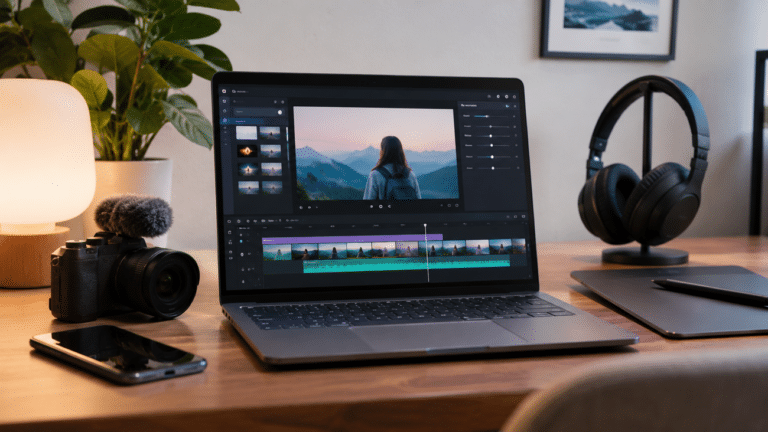
Clipchamp is the first CapCut alternative to try for free captioned videos on a computer; VN is the stronger starting point for mobile editing. Descript suits speech-heavy projects, DaVinci Resolve offers deeper desktop control, and Kdenlive is useful when you want a free editor with an editable project archive. The right replacement depends on which part of CapCut is slowing you down.
Need extra footage for your edit? Use the DIY AI video generator to create source clips, then assemble, caption and finish them in your chosen editor. The comparison below focuses on free exports, caption corrections, paid assets and the work involved in moving projects.
Choose a replacement for the job you actually need to finish
| What you need | Start with | Free export position | Main trade-off |
|---|---|---|---|
| Automatic captions and straightforward desktop edits | Clipchamp | Up to 1080p without an editor watermark | Premium assets or features can still prevent export |
| Mobile clips, templates and caption styling | VN | Up to 4K without an editor watermark | Free local captions and paid Cloud captioning are different options |
| Interviews, tutorials and edits built around speech | Descript | Free is limited to 720p and is not watermark-free | Budget for a paid plan if you need clean delivery |
| Longer projects, colour work and detailed Audio editing | DaVinci Resolve | Free edition supports up to Ultra HD at 60fps | Built-in automatic subtitles require Resolve Studio; some paid effects add a watermark |
| Free desktop editing and project files you can archive with their media | Kdenlive | No export subscription; a vertical 1080p export passed our check | Automatic transcription needs speech engines and models configured first |
Published feature and export conditions checked on 24 November 2026. We also completed limited Clipchamp and Kdenlive export checks, described below. These were separate synthetic projects, so they do not establish a caption-accuracy or editing-speed ranking.
If one nearly finished CapCut project is blocked, identify the paid element before rebuilding everything. CapCut’s guide to removing Pro features includes a useful detail: a cover containing Pro material can still trigger restrictions after you have cleaned up the timeline. Our CapCut review covers the product verdict, while CapCut pricing explains subscriptions and credits.
Clipchamp: free captions, but check assets before styling the whole video
Clipchamp is a sensible first stop for a talking-head clip, tutorial or simple promotional edit. Its free personal plan includes automatic captions, transcript corrections, SRT subtitle downloads, and 1080p exports. You can work in a supported desktop browser or the Windows app.
The catch is familiar: adding an asset or feature outside your plan can block export. Microsoft says Clipchamp does not solve that by adding a watermark; you must remove the premium element or obtain the required entitlement. Start with your own footage and free elements, apply your intended caption style, then try exporting before polishing the remaining scenes.
Keep the SRT and the finished video. It gives you a separate copy of the caption text and timing for later corrections or another supported editor. For client handoff, also confirm that the recipient can open and change the project using their own account. A link to watch an MP4 does not demonstrate editable access.
VN: choose the local caption model to keep that step free
VN belongs near the top of the shortlist if you want to keep editing on a phone. Its published export options reach 4K and 60fps, and VN says exporting does not require Pro or an extra fee. It also advertises exports without its own watermark.
Caption generation needs a closer look. VN offers its on-device Tiny and Base models free, including offline use; cloud-based captioning requires credits. Choosing the Cloud option can therefore introduce a charge even though the editor has a free caption route. Premium templates and other resources are separate again.
Test the local model with the kind of speech you publish: product names, a regional accent or background noise. Check how easily you can repair words and adjust line breaks on a small screen. Also rebuild one familiar CapCut template before committing. A substitute needs to make your recurring layout easy to reuse, not merely offer a large template gallery.
Descript: budget for clean exports and the length of your source recording
Descript is worth testing when most of the edit involves deciding what someone should say next. Its transcript-based workflow lets you cut and rearrange spoken material through text, which suits interviews, demonstrations and tutorials.
Learn the difference between editing the script and correcting the transcript. Descript’s Correct mode fixes written mistakes without changing the underlying recording. That is the appropriate operation for a misspelt brand name; deleting a passage as an edit changes the programme itself.
The current free plan lists 60 media minutes per month and 720p exports without watermark-free delivery. Hobbyist adds watermark-free 1080p output. Treat Free as a way to assess the workflow before budgeting for finished videos.
Processing allowances also follow the source material you import or record. A short taken from a lengthy interview can consume much more allowance than its final running time suggests. Consider the input workload, the paid export requirement, and the time you spend correcting speech. For a montage with little dialogue, the transcript workflow offers less reason to switch.
DaVinci Resolve: separate free timeline editing from paid automatic captions
DaVinci Resolve makes sense when CapCut’s timeline, colour, or Audio controls become the constraint. Blackmagic describes the free desktop edition as supporting virtually all 8-bit video formats up to Ultra HD 3840 × 2160 at 60fps. Check your actual camera files before moving a large project, especially if your workflow uses other formats.
Resolve Free can import and edit subtitle files, but its built-in Create Subtitles from Audio feature requires Resolve Studio. You can bring in an SRT generated elsewhere, then correct and style it in Resolve. That adds a step for someone who currently expects captions inside the editor.
Some Studio-only effects also display a watermark in the free edition. Run a short export after adding the effects you intend to reuse. Resolve is the better choice if you will use its deeper controls across longer or more demanding projects; learning it solely to avoid one caption restriction can create extra work.
Kdenlive: configure transcription before your first deadline
Kdenlive is a free, open-source desktop option with subtitle import, timeline corrections and export. It is particularly useful if you want to keep working with local media and package a project for another computer.
Automatic transcription takes preparation. Kdenlive supports VOSK and Whisper, but you need to configure the required dependencies and speech models first. Our installed copy requested speech-recognition models, so we tested importing and correcting prepared subtitles instead. Check that setup before promising a same-day captioned delivery.
For handoff, use Archive Project to collect the media and update file paths. Sending only the project file can leave the recipient with references to footage that exists on your machine. Open the archive on the receiving computer before treating the delivery as complete.
What actually reached export in our checks
We completed two narrow checks using synthetic material, with different source files and durations. Neither used premium stock or paid effects.
| Editor and sample | What we did | Observed output |
|---|---|---|
| Clipchamp in Chrome: approximately 15 seconds | Created synthetic narration and a title card, generated automatic captions, then selected 1080p MP4 export | Completed 1080 × 1920 video; captions visible in the exported preview; no upgrade prompt encountered |
| Kdenlive 24.12.3 on Linux: 30 seconds | Imported synthetic footage and five prepared SRT entries, corrected a deliberate spelling error, then rendered the project | Completed 1080 × 1920 H.264/AAC MP4 at 30fps; corrected caption burned into the inspected output frame |
No editor watermark was visible in the inspected output frames. These checks establish that those particular workflows reached export. They do not measure caption accuracy on real speakers, complex footage performance or comparative correction time. VN, Descript, and Resolve are assessed here based on their published capabilities, rather than claimed hands-on results.
See more of our reporting in Google Top Stories, AI Overviews and AI Mode.
Compare correction time using one finished short.
A recurring frustration in discussions about leaving CapCut is losing convenient titles, caption styles and transitions. A more capable editor may reproduce them, but somebody has to build the presets. That setup cost is easy to miss when comparing feature lists.
Before moving your regular work, run the same 30-second clip through your two strongest candidates. Use speech containing a name or technical term, two cutaways and your normal caption style. Include the font, Music, and effects you would actually publish.
- Time active corrections. Record the time spent fixing words, timing and line breaks separately from waiting for transcription or rendering. Avoid counting your first attempt to find a menu as a permanent workflow cost.
- Record paid elements. Note exactly which font, asset, effect or AI operation requests payment. Export once with the intended styling; a successful plain clip proves less.
- Inspect the exported file. Check dimensions, frame rate, Audio sync, watermarks and caption visibility in a separate player. Preview quality inside the editor is not the delivery result.
- Make one revision. Replace a clip and change a caption after reopening the project. Then export again. This reveals whether the workflow stays manageable after the first version.
For longer videos, repeat the exercise with a representative section of your real project. A successful short does not mean a long interview, multiple speakers, or a large media library will remain comfortable to edit. Weigh the subscription savings against the extra work per finished video.
Move the source files and captions before rebuilding templates
Plan migration around the original assets. Importing a finished MP4 into another editor gives you a single rendered video; it does not recover the original text layers, separate Music tracks or template controls. Do not assume that a CapCut project opens as an editable timeline elsewhere.
- Keep the originals: camera clips, voice recordings, images, logos and any Music you are entitled to reuse.
- Save two finished references where possible: the approved captioned version and a clean version without burned-in captions.
- Retain a subtitle file: export SRT or VTT if your current version and plan permit it. This preserves text and timing, but do not expect animated caption styling to transfer.
- Rebuild one reusable layout: recreate your title, caption position, colours and closing card in the new editor before moving more work.
Move new projects first. Keep older editable projects available until their likely revision window has passed. For a client delivery, ask the recipient to change a word, replace a shot and export from their own account or computer. That is a much stronger handoff check than confirming that a download link opens.
Check the selected Music before using a template in an advert
A watermark-free export does not establish commercial rights to every asset inside it. VN’s material guidance, for example, distinguishes Music supplied by VN from tracks supplied by other musicians, which may have different commercial-use or attribution conditions.
For client work, check the actual track and template components, the permitted use and any attribution requirements. Keep a record of the asset and its terms with the project. If the terms do not cover the intended advert, replace the asset before polishing an edit around it.
Choose after exporting your first complete short
Start with Clipchamp for free desktop captions or VN for mobile work. Test Descript when restructuring speech consumes most of your editing time. Choose Resolve for deeper post-production control, or Kdenlive when free desktop editing and a portable project archive fit the job. Commit once your normal caption style, chosen assets and first revision all reach a usable export.
You Might Also Like:

Best AI Video Generators

Best Image To Video AI

Capcut Review 2026