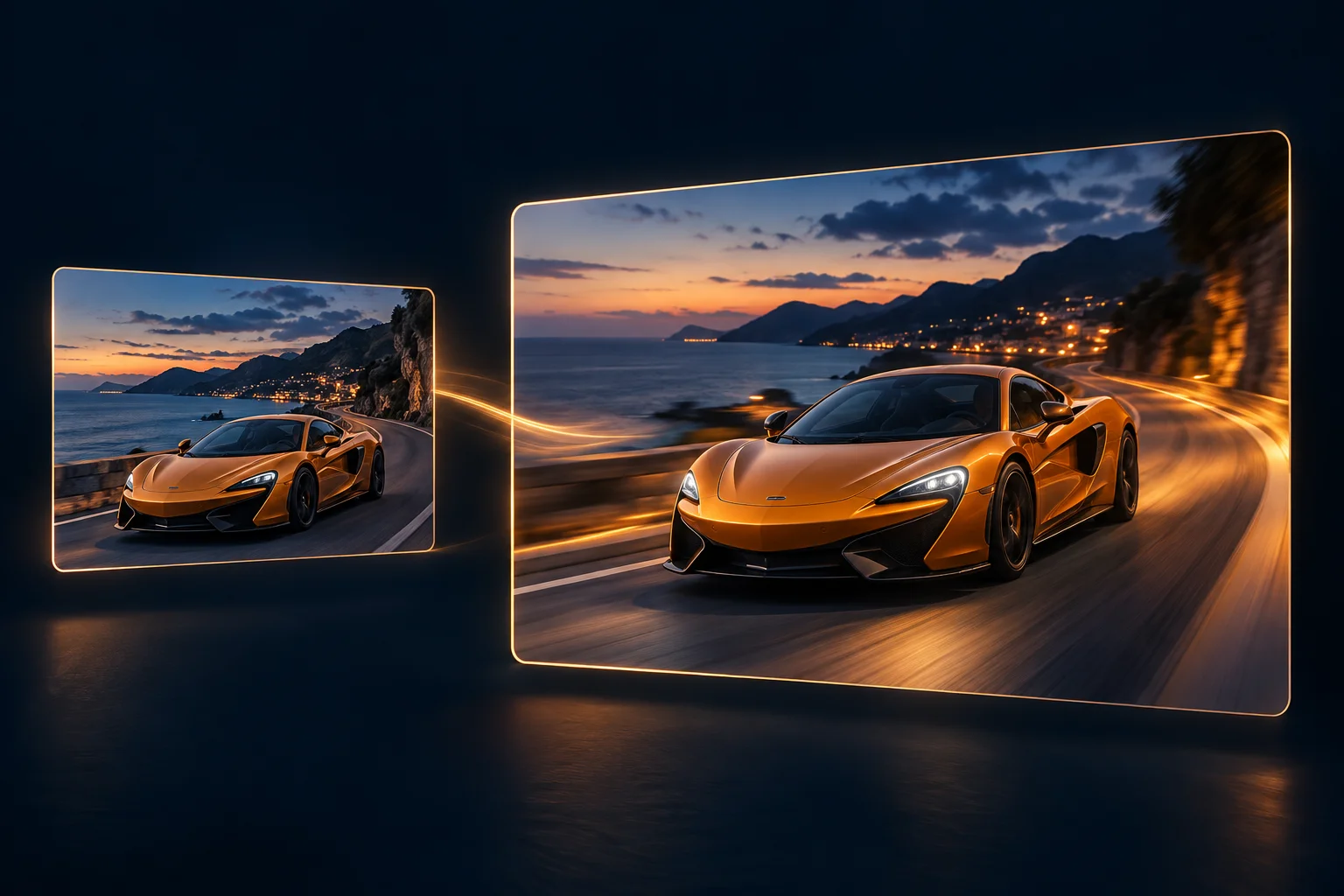
How to generate an AI video in DIY AI Studio
Choose Text to Video to describe a scene, or Image to Video to animate a source image with a compatible model. The selected model determines which modes, durations, resolutions and aspect ratios are available. Review the current controls and credit requirement before generating.
- Choose an enabled video model from the selector. Models marked as coming soon or not configured cannot be submitted.
- Write a prompt that describes the subject, setting, motion, camera behaviour and lighting.
- Choose an available aspect ratio, then select a duration and resolution supported by your model.
- Review the displayed credit requirement, generate the clip and follow its progress in the video workspace.
Choosing an AI video model
Video models differ in availability, price and the way they interpret motion and camera language. Studio uses the model catalogue shown in the interface as the operational source: enabled models can be selected, while unavailable entries remain disabled. This avoids promising a provider that is not configured for generation.
Begin with the result you need. A product reveal benefits from controlled subject movement and a deliberate camera path. A travel scene may need environmental motion such as mist or water. A vertical social clip should state that framing clearly and keep the action readable in a short duration.
Video generation settings and controls
The video generator exposes only the controls currently supported by this workflow.
- Prompt: up to 1,000 characters describing the scene, subject, movement, camera and light.
- Aspect ratio: 16:9 for landscape video or 9:16 for portrait and vertical use.
- Duration and resolution: choose from the selected model's supported settings. Veo 3.1 Lite starts with eight seconds at 720p; Studio updates the credit preview when you change a setting.
- Model: select from the video providers enabled in the current Studio configuration.
- Job results: completed clips appear in the workspace with save and download actions where available.
Writing prompts that work for AI video
A useful video prompt gives the model a simple sequence to stage. State what the viewer sees first, what moves, how the camera responds and what visual mood should remain consistent. Trying to fit several unrelated scenes into one short clip can make the result less coherent.
- Subject and action: identify the main subject and use a clear motion verb.
- Camera: describe a slow orbit, push, pan, tracking move or fixed composition when that direction matters.
- Environment: include secondary movement such as cloth, smoke, reflections, water or passing light only when it supports the scene.
- Finish: specify cinematic, documentary, product-film or social-advert treatment and describe the lighting rather than relying on a vague quality word.
Credits and generation requirements
Generating a video requires a logged-in account, an active Studio membership, an enabled provider and enough credits for the selected model and duration. The interface calculates and displays the current requirement before submission. Longer clips use a higher displayed requirement in the present workflow.
Video jobs may take longer than image requests, so the workspace reports job status while processing continues. Completed clips can be reviewed and, where the result is available, saved or downloaded. Failed submissions continue to use the Studio's existing credit and job rules; this search page does not alter those financial controls.
Choosing a video tool before you create
This generator serves the create-now intent. For comparisons, reviews, pricing research and broader model selection, use DIY AI's editorial video-tool rankings and return to Studio when you are ready to make a clip.
AI video generator FAQs
Does DIY AI Studio generate video from text?
Yes. Text to Video creates a clip from your written scene prompt. Image to Video lets you upload or select a source image when the selected model supports it. Available settings and required credits are shown in the generator.
Which video lengths can I choose?
Available lengths depend on the selected model and resolution. Use the duration options shown in the generator; the displayed credit requirement updates with your selection.
Can I make a vertical AI video?
Yes. Choose the 9:16 aspect ratio for portrait or vertical output. The 16:9 option is available for landscape video.
Why is a video model disabled?
A disabled model is not currently configured or available for submission. Choose an enabled option shown by Studio; this page does not claim that every listed future provider is active.