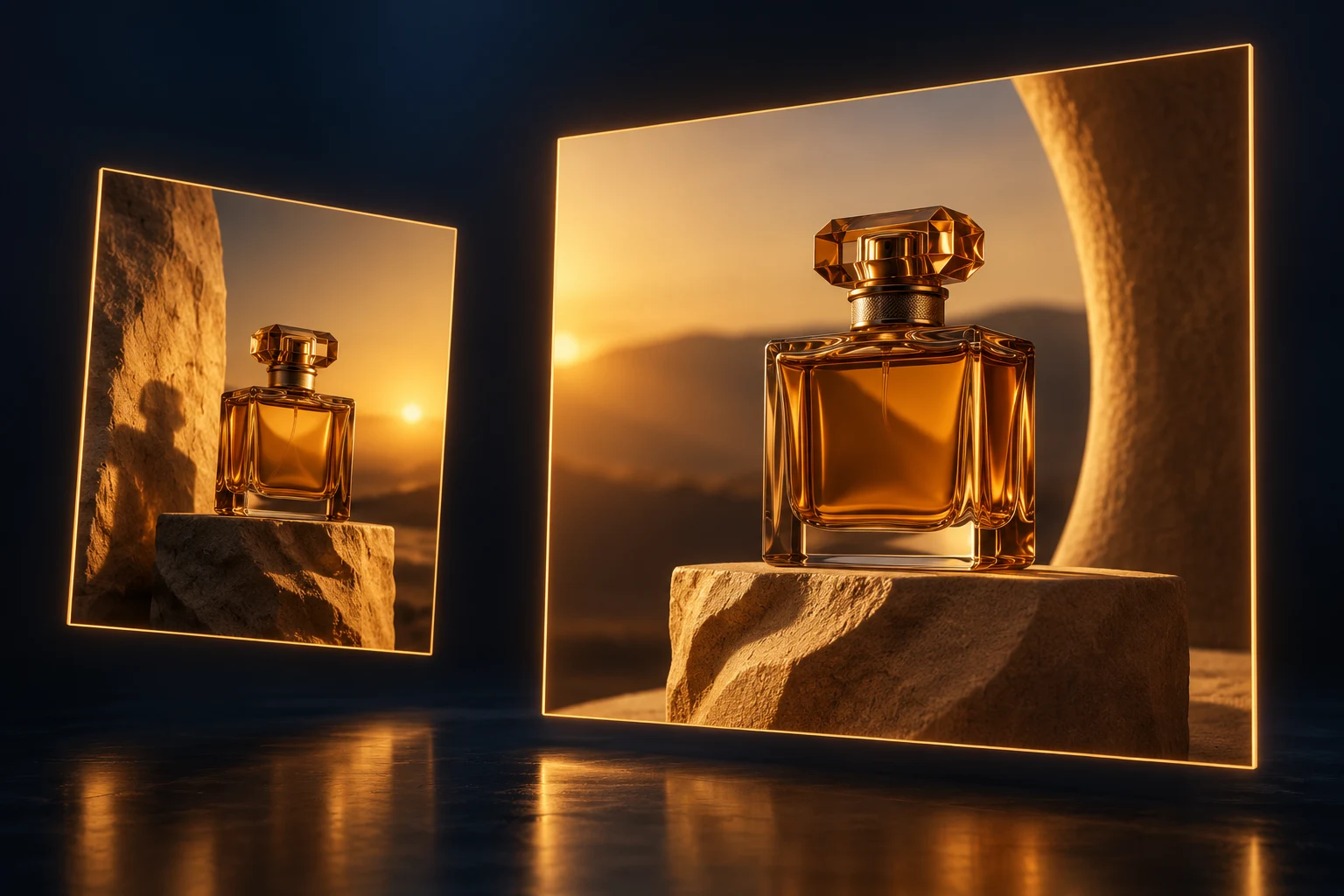
How to generate an AI image in DIY AI Studio
The generator is designed for a direct prompt-to-image workflow. You can inspect the available model and the required credits before submitting anything, then keep the finished result with the rest of your Studio history.
- Choose an image model from the selector. Options that your current membership cannot use are identified in the interface.
- Describe the subject, setting, composition, lighting and visual style you want. Add a negative prompt when you need to identify elements to avoid.
- Select an image size and use case. The model selector will limit sizes when a model supports fewer aspect ratios.
- Check the displayed credit requirement, generate the image and review the result in the same workspace.
Choose the right image model for your prompt
Different image models can interpret the same instructions differently. A product composition may need accurate object placement and clean lighting, while a social graphic may depend more on strong layout, colour and readable detail. Start by matching the model to the result you need rather than choosing from a static list in an article.
Studio builds its selector from the active model catalogue. That means model names, account access and credit costs stay connected to the generation interface instead of being duplicated in this page copy. If a model is unavailable, choose another displayed option or review the membership prompt before continuing.
Image generation controls available in Studio
The current image workflow provides a focused set of controls that shape the request without turning the page into a complicated editor.
- Prompt: describe the content and finish of the image in up to 5,000 characters.
- Negative prompt: optionally list unwanted qualities such as blur, artefacts or distracting elements.
- Image size: choose from the aspect ratios supported by the selected model, including square, landscape and portrait options where available.
- Use case: label the job as a blog image, product mock-up, YouTube thumbnail, social post, advert creative or website hero.
- Credit summary: see the required credits and projected balance before the request is submitted.
AI image prompt examples
Useful prompts usually specify what is present and how it should be presented. These patterns are starting points rather than guarantees, because each active model applies instructions in its own way.
- Product image: describe the object, surface, background, camera angle, lighting and the intended commercial finish.
- Editorial image: name the subject, location, mood, framing and any visual details that carry the story.
- Social creative: specify the format, focal subject, colour palette, amount of negative space and the energy of the composition.
- Website hero: describe a wide composition, where the subject should sit and where clear space is needed for page copy.
Credits, generation limits and account requirements
You can inspect the generator while logged out, but generation requires a login, an active Studio membership and enough credits for the selected model. The interface shows the current requirement before submission; costs can vary between models and may change as the active catalogue is updated.
Successful images appear in the workspace and account history, where supported result actions include saving and downloading. DIY AI does not describe this page as unlimited or promise a free generation, watermark policy or usage licence that is not shown in the current membership and product terms.
Choosing a generator or comparing the wider market
This page is for creating an image now. If you are still deciding which service or model best fits your work, use DIY AI's editorial testing and rankings for the selection stage, then return here when you are ready to generate.
AI image generator FAQs
Do I need an account to generate an AI image?
Yes. The controls can be explored before login, but submitting an image request requires a logged-in account, an active Studio membership and enough credits for the selected model.
How many credits does an AI image use?
The requirement depends on the image model. Studio displays the current credit amount and the projected balance before the Generate Image button can submit the request.
Can I choose the image aspect ratio?
Yes. Square, landscape and portrait ratios are available in the interface, but the exact choices are restricted to the ratios supported by the selected model.
Can I compare results from different image models?
Open Model comparison in Studio Explore to send one prompt to selected image models and review their outputs side by side.