How to Automate Emails With ChatGPT in 2026
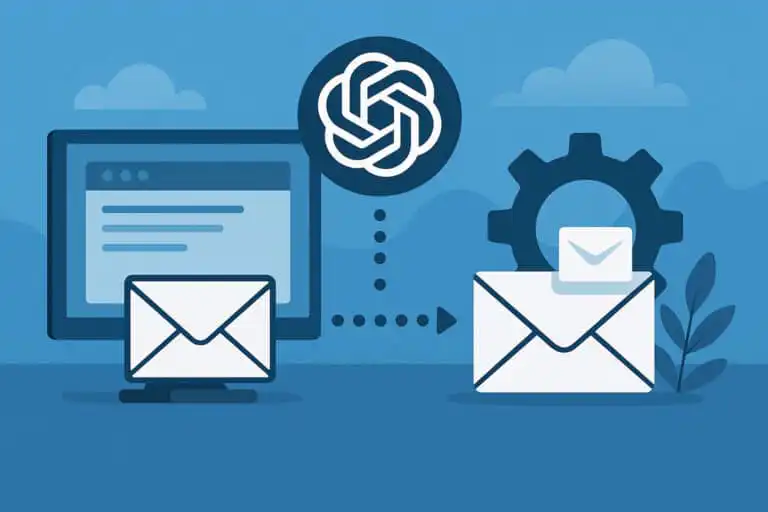
Email automation with ChatGPT means using a language model to read, classify, summarise, draft and sometimes send emails inside a controlled workflow. The useful version is not a magic inbox robot. It is a system of triggers, context, prompts, approval steps, and logs that reduces repetitive judgment without blindly handing over risky decisions.
This guide explains how to automate emails with ChatGPT in a practical way: what the workflow looks like, which stack options make sense, how to write safer prompts, where human review still belongs, and what can go wrong when teams move too fast. It is written for founders, operators, support leads, sales teams and technical marketers who want an email workflow that can survive real customer messages, not just a polished demo.
For a wider view of where email automation fits into daily work, see our guide to the best AI productivity tools.
The fast answer: the safest way to automate email with ChatGPT
The safest starting point is to let ChatGPT draft and classify emails, but keep humans in control of sending. A good first workflow looks like this:
- A new email arrives in a specific inbox, such as support@ or sales@.
- The automation collects the latest message, the thread history, customer details and any relevant policy notes.
- ChatGPT classifies the email and drafts a reply using a strict prompt.
- The draft is saved in Gmail, Outlook, a helpdesk or CRM for human review.
- The system logs the prompt, output, category and final human action.
That may sound less exciting than full auto-send. Good. In practice, most failed AI email projects fail because they skip the boring control layer. Draft-first automation gives you most of the time saving while avoiding the nightmare scenario: a model sending a confident, wrong or policy-breaking message to a real customer.
Does false mean the ChatGPT automation has failed?
No. A scheduled task can exist and run even when both notification settings are false. In that situation, the result may still appear inside the associated ChatGPT conversation or Scheduled Tasks page, but ChatGPT will not proactively alert you by email or push notification.
If the automation is not running, check for a separate status, such as paused, inactive, or failed. Also, check whether the original conversation linked to the task has been deleted or whether the task has reached an account limit.
Why does ChatGPT show false after I enabled notifications?
The displayed values may not update immediately if the page has cached an older task state. Refresh ChatGPT, reopen the task and check the notification settings again.
If push alerts remain disabled, check the browser or mobile operating system permissions rather than repeatedly recreating the automation. Recreating the task will not override a device-level notification block.
2026 refresher: what has changed in ChatGPT email automation
In 2026, the strongest ChatGPT email workflows are less about clever prompts and more about controlled orchestration. The model is only one part of the system. The surrounding workflow now matters just as much.
Three changes are worth factoring into any updated article or implementation plan:
- Structured outputs are now standard for serious workflows. Free-form replies are fine for drafts, but classifications, routing decisions and task creation should use predictable fields such as category, confidence, escalation reason and suggested action.
- Function calling matters when email automation touches external systems. If the workflow needs to check an order, query a CRM, create a support task or update a status, use controlled tool calls rather than asking the model to improvise.
- Workspace, API and privacy settings must be checked separately. Do not assume that a ChatGPT workspace, an API account, and an email integration all share the same data controls, billing model, or retention settings. Document the exact product path that the customer data takes before it enters the workflow.
The practical shift is simple: treat ChatGPT as a controlled component inside an email operations system, not as a chatbot bolted onto Gmail.
What problem ChatGPT email automation actually solves
Email overload is usually not a typing problem. It is a context-switching problem.
A human reading an inbox has to identify the sender, interpret the request, remember the policy, check the customer history, decide urgency, choose a tone, write the response and often update another system afterwards. Multiply that by 50 or 500 messages a day, and the real cost becomes obvious. The team is not just writing emails. It is constantly rebuilding context.
ChatGPT is useful because it can reduce that repeated cognitive load. It can summarise long threads, classify messy messages, draft replies in a consistent voice and turn email content into structured actions. The goal is not to remove people from every conversation. The goal is to move people away from repetitive interpretation and towards judgment, approval and exception handling.
Good use cases include:
- Support reply drafts for common questions.
- Sales follow-up personalisation based on lead notes.
- Recruitment inbox triage and candidate response drafts.
- Daily summaries of important customer conversations.
- Routing billing, legal, technical and urgent messages to the right queue.
- Turning email requests into tasks inside project management tools.
Poor use cases usually involve vague scope, missing context or high-risk decisions. Refund exceptions, legal threats, HR complaints, contract negotiation and angry customers should not be handed to a fully automated sender without a human checkpoint.
How ChatGPT fits into an email workflow
Most ChatGPT email automations follow the same core architecture. The tools vary, but the pattern is consistent.
| Stage | What happens | Common failure point |
|---|---|---|
| Trigger | A new email, label change, form submission or CRM update starts the workflow. | The trigger is too broad and captures messages it should ignore. |
| Context gathering | The system collects the email thread, sender details, CRM notes, order data or helpdesk history. | The model receives only the latest email and misses important context. |
| Model step | ChatGPT classifies, summarises, drafts or extracts structured fields. | The prompt is too vague or leaves the model guessing. |
| Validation | The workflow checks category, confidence, missing fields, banned claims or escalation triggers. | No one checks whether the output is safe to use. |
| Action | The system creates a draft, applies a label, updates a CRM, sends a notification or sends a reply. | The workflow sends externally when it should only create a draft. |
| Logging | Prompts, outputs, decisions and human edits are stored for review. | The team cannot explain why an email was handled a certain way. |
This structure matters because email automation is rarely a single prompt. It is a chain. When a chain fails, you need to know which link broke.
Core stack options for ChatGPT email automation
There are three common ways to build the stack: native AI inside an email or helpdesk platform, no-code automation connected to ChatGPT, or a custom backend using the OpenAI API. None is universally best. The right choice depends on control, risk and maintenance capacity.
| Approach | Setup effort | Control | Best fit | Main trade-off |
|---|---|---|---|---|
| Native AI inside a helpdesk, CRM or email app | Low | Low to medium | Teams that want quick drafting assistance and basic summaries | Fast to deploy, but often provides limited visibility into prompts and logic. |
| No-code automation tool plus ChatGPT | Medium | Medium to high | Small teams connecting Gmail, Outlook, Slack, CRMs and task tools | Flexible, but workflows can become difficult to debug without discipline. |
| Custom backend using API access | High | Very high | Engineering-led teams, regulated workflows and high-volume support | Provides the most control, but you own reliability, monitoring and maintenance. |
If the workflow only drafts replies for a few users, native AI may be enough. If the workflow needs to combine email, CRM data and task creation, no-code automation is often the pragmatic middle ground. If the workflow touches sensitive data, high volumes or contractual commitments, a custom backend is usually easier to govern properly.
The main workflow patterns and when to use them
Email automation becomes easier to design when you separate the pattern from the tool. Most teams need one of four patterns.
| Pattern | What ChatGPT does | Risk level | Operational rating |
|---|---|---|---|
| Human-reviewed reply drafting | Write a suggested response for a human to approve or edit. | Low to medium | 5/5 – Safest starting point |
| Triage and routing | Classifies messages, applies labels and sends them to the right queue. | Low | 5/5 – High value with limited downside |
| Summaries and digests | Turns threads or inbox activity into brief internal updates. | Low | 4/5 – Strong for managers and founders |
| Fully automated replies | Sends messages without human approval. | Medium to high | 3/5 – Useful only in narrow cases |
Human-reviewed reply drafting
This is the pattern I would start with for almost every team. ChatGPT reads the thread, applies your tone and policy rules, then creates a draft. A person checks it before sending.
The benefit is immediate: less blank-page work, more consistent replies and faster handling of common questions. The downside is that the workflow still requires human attention. That is not a flaw. It is the control mechanism.
Triage and routing
Triage is often more valuable than reply generation. A model can identify whether an email is a billing issue, an urgent support request, a partnership pitch, a complaint, a legal matter, or a low-priority notification. The workflow can then apply a label, update a helpdesk field or alert the right person.
This pattern is safer because the model is not speaking to the customer. A wrong label is annoying. A wrong email can damage trust.
Summaries and digests
Summaries work well for leaders, account managers, and support leads who need visibility without having to read every thread. A daily digest might include unresolved complaints, high-value prospects, churn-risk signals and conversations that need escalation.
The trick is to make summaries decision-oriented. “Here are 37 emails” is not helpful. “Here are the five threads that need attention today and why” is.
Fully automated replies
Full automation should be saved for narrow, well-tested cases. Examples include sending a known help article, confirming receipt of a request, answering simple opening-hours questions or acknowledging an internal ticket.
A good rule: if the email could involve money, legal interpretation, personal data, a complaint, cancellation, refund or contract change, use human approval.
Step-by-step: build your first ChatGPT email automation
Choose one narrow workflow
Do not begin with “automate support”. That is too broad. Start with something concrete, such as:
- Draft replies to password reset questions.
- Classify inbound sales leads by intent.
- Summarise daily support emails for the founder.
- Create draft replies for shipping status questions.
The best first workflow is repetitive, low-risk, and common enough that the time savings are visible.
Collect real examples
Take 30 to 50 real emails that match the workflow. Include the replies your team actually sent. Remove sensitive details if you are using them for prompt design outside your production environment.
This gives you a test set. Without examples, you will be judging the automation by instinct, which is how brittle systems get approved too early.
Write a strict prompt
A useful email prompt defines the role, task, limits, tone and output format. For example:
You are an email support assistant for [Company].

Task:
Draft a reply to a customer who is having trouble logging in.

Rules:
- Use British English.
- Be calm, clear and concise.
- Do not offer refunds, discounts or account changes.
- If the message is not about login access, say the request should be passed to a colleague.
- Do not invent account details, subscription details or technical status.
- Draft the reply only.

Reply structure:
- One short acknowledgement.
- Clear steps the customer can try.
- One closing sentence offering further help.

Customer email:
[Email body here]
This prompt is deliberately restrictive. It gives the model room to write, but not room to decide company policy.
Use structured output where the workflow needs decisions
For classification and routing, use a structured format. For example:
Read the email and return JSON only.

Allowed categories:
- LOGIN_ISSUE
- BILLING_QUESTION
- TECHNICAL_BUG
- FEATURE_REQUEST
- COMPLAINT
- OTHER

Return:
{
  "category": "",
  "confidence": 0,
  "escalate": true,
  "escalation_reason": "",
  "summary": ""
}

Rules:
- If the email mentions legal action, refunds, cancellation or personal data, set escalate to true.
- If confidence is below 0.75, set escalate to true.
- Do not include any text outside the JSON object.

Email:
[Email body here]
Structured output makes the next step safer. Your automation tool can route by category, block low-confidence actions and flag sensitive topics before anything leaves the system.
Create drafts before sending anything
For the first month, create drafts only. Ask users to approve, edit or reject each draft. Track the edits. Those edits are the most useful feedback you will get because they reveal where the prompt, policy notes or context are weak.
Once the workflow is reliable, you can decide whether any tiny slice should be auto-sent. Most will not. That is fine.
Review the logs every week
Check a sample of prompts, model outputs and final sent emails. Look for recurring problems:
- The model sounds too formal or too casual.
- It misses details from the thread.
- It suggests actions that are not allowed.
- It handles edge cases as if they are routine.
- It writes too much for simple questions.
Prompt changes should be versioned. If a new prompt performs worse, you need an easy rollback path.
Buying guide: how to choose tools for your ChatGPT email stack
Tool choice matters, but the most expensive platform will not rescue a vague workflow. Evaluate tools against the job they need to do.
Email and inbox support
Check whether the tool can access the right inboxes, labels, threads and draft folders. Gmail and Outlook behave differently around threads, aliases, signatures and permissions. Test those details before you build the whole workflow.
CRM and helpdesk context
Email content alone is often incomplete. For sales, you may need the lifecycle stage, deal value, previous calls and owner. For support, you may need subscription status, product version, recent tickets and refund policy. If the automation cannot fetch that context cleanly, the draft quality will be inconsistent.
Prompt visibility and version control
A tool that hides the prompt may be fine for personal productivity, but it is weak for team operations. You should be able to read, edit, version and audit the prompt. Otherwise, you cannot explain the system’s behaviour when something goes wrong.
Approval steps
Look for clear approval states: draft created, reviewed, edited, sent, rejected or escalated. A workflow that jumps from model output to external send is only safe for narrow transactional cases.
Logs and error handling
At minimum, you need to see which email triggered the run, what context was sent, what the model returned and what action followed. In sensitive environments, redact or hash personal data where possible, while retaining enough detail for debugging.
Pros and cons of using ChatGPT for email automation
| Pros | Cons |
|---|---|
| Reduces repetitive drafting and inbox triage work. | Can produce confident drafts that still need factual checking. |
| Improves consistency across support, sales and operations messages. | Needs careful context handling to avoid generic or inaccurate replies. |
| Can turn messy email threads into structured tasks, summaries and labels. | Fully automated sending creates reputational and compliance risk. |
| Works well with templates, policies, and CRM data when the workflow is properly designed. | Costs and latency can grow quickly on high-volume inboxes. |
| Makes small teams faster without forcing every reply into a rigid template. | Requires monitoring, version control and periodic prompt maintenance. |
Common misconfigurations that break ChatGPT email workflows
Running the automation on every email
This is the classic early mistake. A workflow built for support questions suddenly handles invoices, legal messages, newsletters and angry complaints. Scope the trigger tightly. Use inbox address, sender type, subject patterns, existing labels and exclusion rules.
See more of our reporting in Google Top Stories, AI Overviews and AI Mode.
Sending only the latest message
Email threads carry history. If the model receives only the most recent reply, it may repeat advice, miss earlier promises, or answer the wrong question. Send a controlled window of thread history and mark each section clearly.
Mixing customer-facing and internal language
Internal notes can be blunt. Customer replies cannot. Ask for separate fields, such as customer_reply and internal_reasoning_summary. Never let internal notes leak into a customer draft.
Letting the model decide company policy
The model should not decide refund eligibility, contract exceptions, legal commitments or pricing changes. It can identify the issue, summarise the request and suggest escalation. Policy decisions belong to humans or deterministic business rules.
No confidence threshold
Classification without confidence handling creates quiet errors. Use confidence bands. For example, high-confidence routing can automatically apply labels, while low-confidence cases go to manual review.
No owner for maintenance
Email automations decay. Policies change, product names change, templates change, and edge cases appear. Assign an owner who reviews logs, updates prompts and checks failures. No owner usually means the workflow becomes invisible until it causes a visible problem.
Compliance and privacy checks before launch
Email often contains personal data, commercial information, attachments and sensitive context. Before using ChatGPT in a production email workflow, check these points:
- Data minimisation: send only the fields needed for the task.
- Access control: make sure the automation can only read the inboxes it needs.
- Retention: understand where prompts, outputs and logs are stored.
- Vendor terms: confirm the product path, API account and workspace settings being used.
- Redaction: remove or mask sensitive identifiers where the task does not need them.
- Escalation: route legal, HR, payment, medical and highly sensitive messages away from auto-send.
One practical test helps here: if you would not manually paste the same information into a third-party tool, do not send it automatically until the appropriate security and legal checks have been completed.
Practical checklist for automating emails with ChatGPT
- Define one narrow use case before choosing tools.
- Collect real example emails and ideal replies.
- Decide whether the workflow creates labels, summaries, drafts or sent replies.
- Keep auto-send disabled for the pilot.
- Write a strict prompt with rules, tone and banned actions.
- Use structured output for categories, confidence and escalation flags.
- Include enough thread history and customer context to avoid guessing.
- Block or escalate messages involving refunds, legal issues, cancellations or sensitive data.
- Store prompt versions and note what changed.
- Log model outputs and final human actions.
- Review rejected or heavily edited drafts every week.
- Only expand the workflow after the narrow version behaves reliably.
How to automate emails with ChatGPT FAQs
Can ChatGPT automate my whole inbox?
Technically, yes. Operationally, that is usually a bad idea. An entire inbox contains too many intents, risk levels, and context requirements. Start with one narrow workflow, such as drafting replies to login questions or classifying inbound leads, then expand only after the logs show consistent behaviour.
Do I need the ChatGPT API?
Not always. Personal workflows can sometimes be handled with the ChatGPT interface, connected apps or native email integrations. Team workflows usually require either a proper automation platform or API access to handle repeatable prompts, consistent context, approval steps, and logs.
Should ChatGPT send emails automatically?
How to Automate Emails With ChatGPT in 2026
Only for narrow, low-risk cases with clear rules. Confirmation messages, simple internal alerts and known help article replies can be candidates. Anything involving money, policy exceptions, complaints, contracts, legal issues or personal sensitivity should stay draft-first or human-approved.
How do I stop ChatGPT from making things up in email replies?
You cannot remove the risk completely, but you can reduce it sharply. Keep the task narrow, provide the exact context, forbid guessing, require escalation when information is missing and use human review for risky replies. For structured tasks, use fixed categories and confidence thresholds rather than open-ended prose.
Does AI-written email hurt deliverability?
ChatGPT itself does not decide inbox placement. Deliverability is affected by authentication, sender reputation, volume patterns, complaints and recipient engagement. AI can still indirectly hurt if it produces generic, unwanted, or overly frequent messages. For outbound campaigns, use ChatGPT to personalise and improve human-approved templates, not to send low-quality copy at scale.
What is the best first workflow for a small team?
Start by generating a draft for one repetitive support or sales scenario. Keep the trigger narrow, send drafts to a human, review edits and update the prompt weekly. Once that workflow is boringly reliable, add classification or summaries. Boring reliability is the milestone you want.
The practical takeaway
ChatGPT email automation works best when the model handles reading, summarising, classifying and drafting, while the workflow controls context, approvals and actions. The weakest systems ask the model to do everything. The strongest systems give it a precise job, surround it with guardrails and log what happened.
Start with drafts, not auto-send. Use structured outputs for decisions. Keep policy-sensitive cases in human hands. If you see notifications_enabled: false, email_enabled: false, check out our dedicated guide to resolving that specific issue here.
You Might Also Like:

Generative AI VS Agentic AI

ChatGPT Notifications_enabled False

Free Zoom Transcription