
AutoPod Review 2026: Is the Premiere Pro Podcast Plugin Worth It?
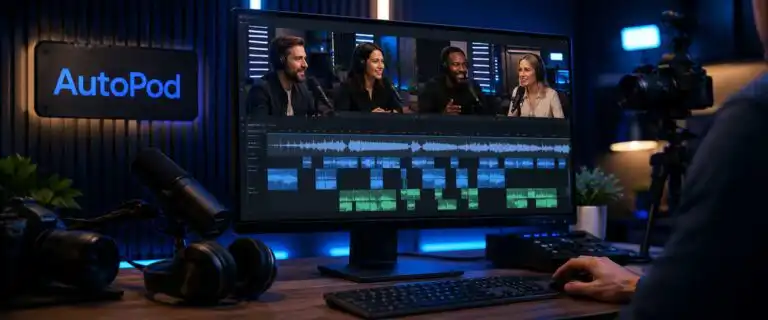
AutoPod is a set of editing extensions designed to automate repetitive tasks in video podcast production within Adobe Premiere Pro. Its main tools switch multicamera angles according to who is speaking, cut silent sections and turn selected timeline ranges into social formats.
The verdict is fairly sharp. AutoPod is worth considering when you regularly edit multi-person, multi-camera shows in Premiere and record every speaker to a separate audio track. It is much harder to justify for solo talking-head videos, mixed-down recordings, or creators seeking automatic captions, transcript editing, and AI-selected highlights on a single platform.
For this AutoPod review, DIY AI assessed the documented workflow, editing controls, installation requirements, licence model, practical failure points, and the extent of corrective work remaining after automation. We also compare AutoPod with Descript, Riverside, OpusClip and Premiere’s own editing tools, rather than treating every product labelled “AI video editor” as interchangeable.
| Review area | DIY AI verdict |
|---|---|
| Best for | Recurring multi-camera podcasts and interview shows already edited in Premiere Pro |
| Main strength | Fast first-pass camera switching without leaving the Premiere timeline |
| Price | $29 per month, per computer, with a 30-day trial on monthly billing |
| Biggest requirement | Each speaker needs a separate, unique audio track for multicamera decisions |
| Main limitation | It automates mechanical edits, not story judgement, highlight selection or final quality control |
| Overall verdict | Strong specialist tool for the right production setup, poor value outside it |
What AutoPod actually automates inside Premiere Pro
AutoPod is better understood as a production assistant than a replacement editor. It performs three narrow jobs: assembling speaker-led camera cuts, adding cuts around silence and producing correctly sized versions of sections you have already selected.
That narrow scope is one of its strengths. The edit remains in a familiar Premiere project, so an experienced editor can inspect every cut, change camera choices, adjust timing and continue with colour, sound, graphics and delivery. There is no need to rebuild an edit created in a separate browser platform.
It also defines the ceiling. AutoPod does not replace project organisation, synchronisation, audio repair, narrative trimming, caption styling, B-roll decisions or final review. A team expecting one button to turn raw recordings into a publishable episode will still have a substantial post-production checklist.
AutoPod Multi-Camera Editor
The Multi-Camera Editor analyses the separate audio tracks and uses the active speaker, assigned camera layout and editing rules to create cuts. AutoPod supports up to 10 cameras and 10 microphones, including individual shots, two-shots, three-shots, four-shots and wide views.
Editors can choose different output methods, including standard cutting, multicam, and workflows, and enable or disable them. They can also increase the frequency of wide shots and save presets for repeated show formats. That preset support is more useful than it first appears: a weekly two-host interview usually needs different cutting behaviour from a panel show where reactions and group views carry more of the conversation.
The limitation is creative judgement. Speaker activity is a useful signal, but it does not tell the whole visual story. A good human edit may hold on a guest’s reaction, stay wide during an interruption or avoid cutting to someone for a one-word acknowledgement. AutoPod gives you the assembly to refine. It should not be assumed that it has made the final decision.
AutoPod Jump Cut Editor
The Jump Cut Editor creates cuts based on silence. You set a decibel threshold for the microphone, then AutoPod identifies sections below that level and cuts the footage accordingly.
This can produce a useful first pass for tightly paced tutorials, monologues and social clips, but the threshold is an acoustic rule rather than a semantic one. It cannot know that a pause was deliberate, that a breath should remain or that a quiet phrase still matters. Background noise, microphone bleed, and inconsistent gain can also cause one threshold to behave differently across an episode.
The safest workflow is to duplicate the sequence and test a representative two-minute section before processing the full recording. Include normal speech, a long pause, a laugh and an interruption in that sample. If those cases survive sensibly, the setting is far more likely to work across the rest of the edit.
AutoPod Social Clip Creator
The Social Clip Creator turns a marked in-and-out range into 1920×1080, 1080×1350 or 1080×1920 sequences. It resizes the sequence and footage, applies Premiere’s Auto Reframe, and adds a watermark or end page. Generated clips are organised in a folder for batch export.
The overlooked limitation is that this is primarily a formatting and packaging tool. You choose the source range. AutoPod’s published feature set does not describe semantic highlight discovery, virality scoring or automatic caption generation. Compared with dedicated repurposing platforms, it reduces the labour after you find a strong moment, not the judgement required to find that moment.
Practical distinction: AutoPod can make a chosen moment easier to deliver in three aspect ratios. It does not remove the need to watch the episode, identify the worthwhile section and check whether the vertical crop follows the right person.
The separate audio-track requirement is the real buying filter
AutoPod’s multicamera automation depends on each speaker having a separate audio track. A single stereo mix or one shared room microphone does not provide the clean speaker-level activity AutoPod needs to decide which camera should be visible.
This is not a small setup preference. It changes the purchasing decision. A studio recording, with isolated microphones on separate channels, is naturally compatible. A remote interview exported with individual participant tracks can also fit. A live event captured as one mixed feed may require a different workflow or may not be recoverable for reliable automatic switching at all.
Splitting a mixed track into duplicate timeline channels does not create unique speaker information. The tracks may look separate in Premiere, but AutoPod still hears the same combined conversation on each one. Proper isolation must occur either during recording or through credible source separation before the multicamera edit.
A recurring pattern among working editors is that AutoPod feels dramatically faster when the source sequence is prepared consistently, yet disappointing when it is asked to repair poor capture. Clear track naming, synchronised cameras, sensible gain and predictable layouts are part of the automation system, not optional housekeeping.
Does AutoPod work for single-speaker recordings?
The flagship Multi-Camera Editor is not designed for a single speaker. AutoPod explicitly requires multiple cameras and multiple unique audio tracks for that feature, so a solo creator should not buy it expecting intelligent switching between a close shot and a wide shot of the same voice.
The Jump Cut Editor and Social Clip Creator have narrower jobs that can still be relevant to solo footage: one cuts silence, and the other reformats selected ranges. Even so, paying for the full bundle is difficult to defend when the main multicamera tool cannot serve the project. Premiere’s built-in text-based editing, pause detection, and Auto Reframe may cover more of a solo workflow without an additional specialist subscription.
How to download and install AutoPod in Premiere Pro
AutoPod’s installation process is conventional, but two details can cause avoidable confusion: Premiere must be restarted after installation, and you need to open a project before locating the extensions.
- Start the trial or purchase a licence and download the installer for your computer.
- Close Adobe Premiere Pro before running the installer.
- Run the AutoPod installer and complete the local installation.
- Reopen Premiere Pro and open a project rather than staying on the home screen.
- Go to Window > Extensions and open the required AutoPod tool.
- Activate the licence on the machine you intend to use for editing.
AutoPod requires Premiere Pro 2023 or newer. The licence is device-based: one key is activated on one computer, though AutoPod provides a process to release the old machine when you need to switch. Production teams with several editors therefore need to budget per workstation rather than assuming one shared company login will cover the studio.
AutoPod pricing and free trial in 2026
AutoPod costs $29 per month for one licence. Monthly billing starts with a 30-day free trial, while annual billing includes one month free. The plan includes the Multi-Camera Editor, Social Clip Creator and Jump Cut Editor. Current details are available on the official AutoPod pricing and system requirements page.
There is no permanent free plan and no separate low-cost tier for creators who only need silence removal or social formatting. There is also no enterprise plan listed. A company can purchase multiple keys from the same email address, but each computer still needs its own licence.
A simple break-even test
The right cost question is not whether $29 sounds cheap. It is whether AutoPod removes more than $29 of repetitive editing each month after setup and corrections.
Use this calculation: monthly subscription divided by your real hourly editing cost. At a hypothetical editing cost of $30 per hour, AutoPod needs to save about 58 minutes per month to cover its subscription costs. At $60 per hour, the break-even point falls to about 29 minutes. A weekly multi-camera show can cross that threshold quickly. A monthly solo podcast probably will not.
Remember to include Adobe Premiere Pro in the total stack cost if you do not already pay for it. AutoPod is most economical as an addition to an established Premiere workflow, not as the reason to adopt Premiere from scratch.
AutoPod pros and cons
| Pros | Cons |
|---|---|
| Keeps automated edits inside Premiere Pro | Multicamera decisions require separate speaker tracks |
| Supports complex layouts with up to 10 cameras and microphones | The Multi-Camera Editor does not support single-speaker recordings |
| Can save presets for repeatable shows | One licence is tied to one computer |
| Creates landscape, portrait and vertical sequences from marked ranges | Social Clip Creator does not replace highlight selection or caption production |
| Thirty-day trial gives enough time to test a real episode | No permanent free tier or cheaper feature-specific plan |
| Outputs remain editable rather than locked in a finished render | Still needs a human pass for pacing, reactions, framing and story |
AutoPod versus Descript, Riverside, OpusClip and manual Premiere editing
These alternatives overlap with AutoPod, but they address different parts of the production process. Choosing by feature count gives misleading results. Start with where your footage is recorded, where the main edit must live and which repetitive decision consumes the most time.
| Option | Best at | What it does better than AutoPod | Where AutoPod has the advantage |
|---|---|---|---|
| AutoPod | Speaker-led multicamera assembly inside Premiere | Not applicable | Direct timeline workflow, repeatable camera rules and editable sequence output |
| Descript | Transcript-led podcast and video editing | Recording, text-based editing, transcription, captions and broader AI assistance | Better fit for editors who want the master edit to remain in Premiere |
| Riverside | Remote recording plus editing and repurposing | Captures separate local tracks, offers text editing and identifies clips within one service | More control for established Premiere post-production workflows |
| OpusClip | Finding and packaging short-form highlights | Automatically selects candidate moments and adds social-first treatments | Handles the main multi-camera episode edit rather than only repurposing the finished recording |
| Manual Premiere editing | Maximum creative control | No extra subscription and no dependency on automated speaker rules | Faster first assembly for repeatable interview and panel formats |
Choose AutoPod over Descript when the timeline is the centre of production
Descript is the stronger all-in-one option for creators who want to record, transcribe, and edit text. Its automatic multicam tools also make the comparison closer than it used to be. AutoPod remains more natural for an editor whose effects, colour, audio routing, graphics and delivery already live in Premiere.
Choose Riverside when recording is part of the problem
Riverside addresses capture and post-production. That matters for distributed podcasts because isolated participant tracks are produced by the recording platform rather than assembled later. AutoPod begins after the media reaches the editing system, so it cannot compensate for a weak remote recording workflow.
Choose OpusClip when discovery matters more than sequence creation
OpusClip is built to find candidate highlights in long-form content and turn them into captioned, reframed social clips. AutoPod expects you to choose the in-and-out points. It is the better fit when you already know which moment you want and need efficient Premiere-based formatting, but the weaker fit when nobody has time to review the full episode for clips.
Choose manual Premiere editing when exceptions dominate the show
Automation earns its keep through repetition. If every episode has a new camera layout, frequent screen shares, demonstrations, cutaways, overlapping dialogue and highly deliberate reaction shots, AutoPod may create so many exceptions that the correction pass cancels out the initial speed gain. Premiere already provides multicamera sequences, text-based editing, pause detection and Auto Reframe; the trade-off is more hands-on time.
For a wider view of generation and editing platforms beyond podcast workflows, see DIY AI’s guide to the best AI video tools.
Common AutoPod mistakes and how to avoid them
Treating a mixed recording as isolated speaker audio
If both speakers are on the same track, AutoPod lacks a reliable signal to make camera decisions. Record isolated microphones from the start, and confirm that each timeline track contains a single speaker before running the multicamera tool.
See more of our reporting in Google Top Stories, AI Overviews and AI Mode.
Running automation before the sequence is stable
Synchronise media, confirm frame rates, label tracks and settle the camera layout first. Rebuilding the source sequence after AutoPod has generated hundreds of cuts introduces more risk than it removes.
Using silence removal as a substitute for pacing
Removing every quiet moment can make a conversation feel nervous and unnatural. Keep intentional pauses, reactions and breathing room. The Jump Cut Editor should reduce dead space, not flatten the performance.
Skipping the correction pass
Review cut points around crosstalk, laughter, short acknowledgements and speaker handovers. Those are the moments where a simple active-speaker rule is most likely to differ from an editor’s choice.
Assuming social clips are publish-ready
Check every vertical crop, especially when two people share a frame, or the active speaker changes quickly. Add captions, safe-zone checks, branding and a proper opening hook separately if the clip needs them.
Who saves enough time to justify AutoPod?
AutoPod is easiest to justify for: podcast agencies, in-house video teams, editors managing weekly interview shows, and creators with a fixed studio layout and isolated microphone tracks. The same project template, camera mapping and editorial rhythm can be reused from one episode to the next.
It is less convincing for: solo creators, occasional podcasters, audio-only shows, teams that edit outside Premiere or DaVinci Resolve, and anyone primarily buying software to discover social highlights. Those users are paying for a flagship multicamera feature they may rarely use.
There is also a useful boundary between audio repair and video assembly. AutoPod can cut based on audio activity, but it is not designed to rescue echo, noise, or poor microphone quality. DIY AI’s Adobe Podcast AI Enhancer review covers that separate stage of the workflow.
AutoPod troubleshooting checklist
- Extension is missing: confirm Premiere Pro 2023 or newer, restart Premiere and open a project before checking Window > Extensions.
- The wrong camera keeps appearing: verify that each speaker has a genuinely isolated track and that the camera and microphone assignments match.
- Cuts feel too frantic: review short interjections, adjust the editing rules and use wide shots more deliberately.
- Jump cuts remove useful pauses: lower or refine the decibel threshold and test a short duplicate sequence first.
- Too much silence remains: check room noise, microphone bleed and gain consistency before raising the threshold aggressively.
- Vertical framing misses the speaker: inspect Premiere’s Auto Reframe keyframes and correct the crop manually where speakers overlap.
- The licence is active on the wrong computer: release the existing device via AutoPod’s computer-switching process before reactivating.
AutoPod review verdict: specialist automation that needs the right inputs
AutoPod is worth the subscription for an editor producing recurring multi-camera podcasts in Premiere Pro with isolated speaker tracks. In that environment, it attacks a real production cost: watching a long conversation and making hundreds of routine camera changes before the creative edit can begin.
Its weaknesses are equally concrete. The multicamera tool cannot work properly with a single mixed audio source, does not support a single-speaker setup, and cannot assess story, reactions, or emphasis as an experienced editor would. The Social Clip Creator formats moments you select rather than finding the best moments for you.
Use the 30-day trial on a complete episode, not a polished ten-minute sample. Measure setup time, processing time and correction time separately. If the final total consistently beats your manual first-pass workflow, AutoPod is an easy tool to keep. If most of the episode has to be rebuilt, the show is too exception-heavy for this particular automation.
AutoPod frequently asked questions
Is AutoPod free?
AutoPod does not have a permanent free plan. Monthly billing includes a 30-day free trial, after which the individual licence costs $29 per month unless cancelled.
Does AutoPod work with Premiere Pro?
Yes. AutoPod works as a set of extensions inside Adobe Premiere Pro and requires Premiere Pro 2023 or newer.
Can AutoPod edit a podcast with one audio track?
Not reliably with the Multi-Camera Editor. AutoPod requires multiple unique audio tracks to detect which speaker is active and select the corresponding camera.
Can AutoPod edit a single-speaker video?
The Multi-Camera Editor is not designed for a single speaker. The silence-based Jump Cut Editor and aspect-ratio tools may still help with solo footage, but the subscription offers less value when the main multicamera feature is unusable.
Does AutoPod automatically find podcast highlights?
No automatic highlight-discovery feature is described in AutoPod’s core toolset. Its Social Clip Creator builds clips from in-and-out points selected by the editor.
Does AutoPod create captions?
Automatic caption generation is not listed among AutoPod’s three main tools. Captions can be created separately in Premiere or through another transcription and social video tool.
Can one AutoPod licence be used on two computers?
No. Each licence is tied to one computer at a time. You can release the old machine and switch the key, but simultaneous use on two workstations requires two licences.
Does AutoPod work with DaVinci Resolve?
Yes. AutoPod now offers a DaVinci Resolve version, although this review focuses on the more established Premiere Pro workflow. Final Cut Pro and Avid are not supported.
You Might Also Like:

Best AI Video Generators

Best Image To Video AI

Best Free AI Video Generators 2026
