
The AI Work OS: Building Smart Workflows Across Tools
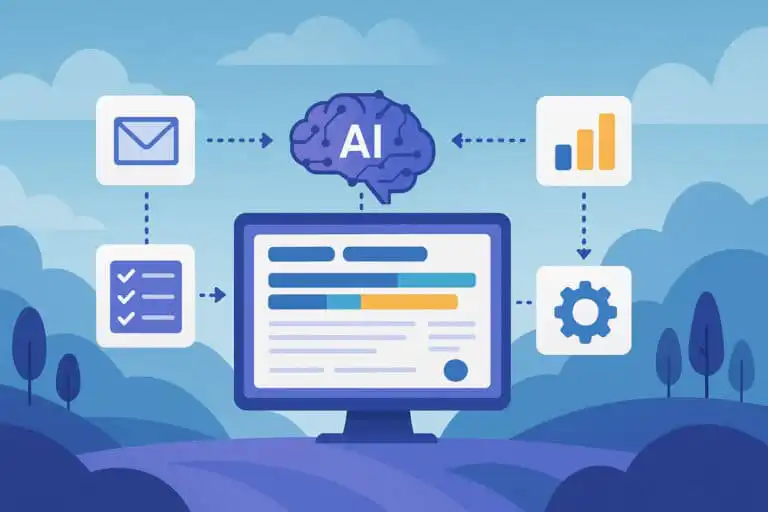
An AI Work OS is not one more productivity app. It is the operating layer that connects documents, meetings, email, chat, tasks, search, data and approvals so work can move between tools without someone manually copying context all day.
This guide explains how AI Work OS architecture works in practice, what problems it solves, which tools currently fit into the stack, and where teams usually misconfigure it. The focus is practical: source of truth design, retrieval, permissions, workflow orchestration, human review gates, and the 2026 shift towards agent-based work.
If you are comparing AI productivity platforms more broadly, start with our best AI productivity tools guide. This page goes deeper into the system design behind those tools.
What an AI Work OS Actually Solves
Most teams do not have a single productivity problem. They have a context-transfer problem.
A decision is made in a meeting, summarised in Slack, half-documented in Notion, attached to a task in ClickUp, buried in an email thread, then forgotten when the next person joins the project. The issue is not that the team lacks software. The issue is that the software does not share enough state.
An AI Work OS solves five recurring bottlenecks:
- Information fragmentation: work lives across Gmail, Outlook, Slack, Teams, Google Drive, SharePoint, Notion, project boards and reporting tools.
- Context loss: people repeat updates because systems do not reliably carry decisions forward.
- Manual rewriting: the same idea gets rewritten as a brief, status update, email, slide, report and executive summary.
- Slow internal search: knowledge workers waste time finding the right document, thread, owner or decision trail.
- Approval bottlenecks: drafts, tasks and analysis often wait for a person to translate them into the next format.
The older McKinsey Global Institute research on workplace collaboration is often cited here because it estimated that knowledge workers spend close to one fifth of their time searching for and gathering information. Even if your organisation is more disciplined than that, the pattern is easy to recognise: the cost is rarely one dramatic failure. It is hundreds of small handoffs.
The AI Work OS changes the unit of work. Instead of asking, “Which app do I open?”, the user asks, “What outcome needs to happen next?” The system then retrieves context, drafts the next artefact, routes it for review, updates the source of truth and records what changed.
2026 Refresher: What Has Changed Since the Early AI Copilot Phase
The 2024 and 2025 version of workplace AI was mostly assistant-led. You asked a chatbot to summarise, rewrite, classify or draft. Useful, but still dependent on the user knowing what to ask and where to paste the result.
The 2026 shift is more operational. Microsoft, Google, Notion, Zapier, Atlassian and similar platforms are moving from “AI helps inside this app” towards agents that can understand context, trigger actions and work across connected systems. That does not mean fully autonomous work is safe by default. It means the useful boundary has moved from text generation into workflow coordination.
Three changes matter most in 2026:
- Agents are becoming first-class workflow components: tools are increasingly built to plan, update, assign, search and execute multi-step work, not just answer questions.
- Workspace search is getting more context-aware: AI can retrieve across Drive, Slack, Teams, Jira, Notion and docs when permissions are configured correctly.
- Governance is no longer optional: permissions, audit logs, approval rules and data boundaries now decide whether an AI workflow is safe enough for real work.
The practical takeaway is simple: a 2026 AI Work OS should be designed like a controlled operations layer, not a novelty chatbot. If it cannot respect permissions, preserve source-of-truth logic and show what it changed, it is not ready for sensitive workflows.
How the AI Work OS Architecture Works
A useful AI Work OS has four layers. The tools vary, but the architecture repeats across most serious implementations.
The tool layer: where work already happens
This is your existing stack: email, calendar, documents, storage, chat, CRM, analytics, project management, ticketing, internal dashboards and automation tools.
Examples include Outlook, Gmail, Google Drive, OneDrive, SharePoint, Slack, Microsoft Teams, Notion, ClickUp, Asana, Jira, Linear, HubSpot, Salesforce, Semrush, SurferSEO, Looker Studio and internal admin panels.
A common mistake is trying to replace this layer too early. Most teams already have too much operational history inside these tools. A better approach is to choose which systems remain authoritative, then connect AI around them.
The knowledge layer: how AI retrieves context
The knowledge layer turns scattered information into searchable context. This is where document indexing, embeddings, vector search, metadata, access control and retrieval-augmented generation sit.
In plain English, this layer answers: “What does the AI need to know before it acts?”
A mature knowledge layer should understand:
- which documents are current and which are obsolete
- who has permission to access each file or thread
- which project, customer, task or meeting a piece of information belongs to
- which source should win when tools disagree
- what has changed since the last summary or decision
This is where many systems fail quietly. The AI might generate a convincing answer from stale documents, duplicated meeting notes or a project plan that was superseded three weeks ago. Strong retrieval is not only about finding text. It is about finding the right text under the right permission model.
The orchestration layer: where work moves between tools
The orchestration layer is the part people usually mean when they say “AI Work OS”. It does not just summarise. It takes a structured next step.
For example, after a meeting, the AI might:
- summarise key decisions
- extract action items with owners and dates
- create tasks in Notion, Asana or ClickUp
- draft a follow-up email
- update a project status page
- flag unresolved risks for review
This is where tools such as Microsoft Copilot Studio, Zapier AI, Notion Agents and workflow automation platforms become relevant. The AI is not simply generating content. It is coordinating handoffs.
That is powerful, but it is also where mistakes become expensive. A bad summary is annoying. A bad automated update sent to the wrong customer is a real operational problem.
The control layer: approvals, audit trails and governance
The control layer decides what the AI is allowed to do without human approval.
For low-risk work, such as drafting a personal task list, automatic action may be fine. For customer communications, legal documents, financial analysis, HR records, security tickets or public content, approval gates are essential.
A sensible control layer includes:
- human approval before external messages are sent
- role-based access controls for retrieval
- logs showing what the AI changed and why
- version history for critical documents
- clear rollback paths
- restricted automation for regulated or sensitive data
The NIST AI Risk Management Framework is a useful reference point for this part of the system because it separates AI risk into governance, mapping, measurement and management rather than treating safety as a single checklist item.
How Major Tools Fit Into an AI Work OS
No single product currently owns the full AI Work OS category. The strongest setups use a primary productivity ecosystem, then add specialist tools where the core suite is weak.
| Tool | Best role in an AI Work OS | Dataset overall score | Main trade-off |
|---|---|---|---|
| Microsoft Copilot (365) | Enterprise operations across Outlook, Teams, Word, Excel, PowerPoint and OneDrive | 8.6/10 | Strong governance and Office integration, but less natural outside the Microsoft ecosystem unless extended with Power Automate or Copilot Studio. |
| Google Gemini for Workspace | Workspace search, email drafting, document assistance and Drive-based knowledge work | 8.5/10 | Excellent for Google-native teams, but workflow execution depends on how much automation you build around it. |
| Notion AI | Knowledge base, meeting notes, docs, internal wikis and structured team workflows | 8.2/10 | Very strong when Notion is the source of truth, weaker if key work lives in disconnected external systems. |
| ClickUp AI | Task-linked briefs, project documentation and status updates | 8.2/10 | Useful for project-heavy teams, but needs disciplined workspace hygiene to avoid noisy outputs. |
| Slack AI | Chat search, thread summaries and knowledge retrieval from conversations | 8.1/10 | Great for message-heavy teams, but chat should not become the permanent source of truth. |
| Zapier AI | Cross-app automation and lightweight agentic workflows | 8.0/10 | Flexible across many apps, but governance and workflow complexity need careful control. |
Microsoft Copilot (365): strongest for enterprise control
Microsoft Copilot works best when a company already runs on Microsoft 365. It can draw context from Outlook, Teams, Word, Excel, PowerPoint, SharePoint and OneDrive, which makes it a natural AI layer for organisations with established permission models.
Its biggest advantage is admin control. In larger companies, that matters more than clever prompts. If the AI assistant can respect existing identity, access and compliance settings, the rollout has a much better chance of surviving legal, security and IT review.
The trade-off is ecosystem gravity. Copilot is strongest inside the Microsoft stack. If your operations depend heavily on Notion, Google Drive, Jira, Slack, Airtable or custom apps, you will need connectors, Power Automate workflows or Copilot Studio agents to make the experience feel joined-up.
Google Gemini for Workspace: strongest for search-led knowledge work
Gemini for Workspace is a natural fit for teams that live in Gmail, Docs, Sheets, Slides, Meet, Drive and Chat. Its value is strongest where the work is document-heavy and retrieval-heavy: summarising email threads, drafting in Docs, finding Drive context and assisting with meeting notes.
For content, research and internal knowledge workflows, Gemini’s advantage is the closeness to Google’s information layer. That makes it useful for teams that need fast document understanding rather than complex multi-step process automation.
The limitation is that strong understanding is not the same as operational control. If your workflow requires approvals, task creation, CRM updates and customer follow-ups, you need to pair Gemini with automation rules, Apps Script, third-party tools or a project management system.
Notion AI: strongest when Notion is the source of truth
Notion AI is less about traditional office documents and more about structured knowledge. It works well when briefs, SOPs, meeting notes, project hubs and databases already live in Notion.
The practical advantage is proximity. If your team writes notes, tracks work and manages docs in the same workspace, AI does not need to jump across as many systems to understand what is happening. That reduces context loss.
The risk is over-centralisation. Notion is excellent as a knowledge base, but it should not become a dumping ground for every half-finished idea, meeting transcript and task list. If pages are stale or duplicated, AI will confidently summarise the mess.
Zapier AI and automation tools: useful glue, not a strategy by themselves
Zapier, Make, n8n and similar tools are often the fastest way to connect AI outputs to real actions. They can take a meeting summary, create a task, send a notification, update a spreadsheet or trigger a CRM workflow.
That makes them useful, but they should not become an invisible maze of automations. One pattern you see again and again is a team building clever workflows that nobody can debug three months later.
For production use, document every automation with owner, trigger, action, failure mode and rollback step. If nobody can explain why a workflow fired, it is not controlled enough.
Practical AI Work OS Workflows
Meeting notes to action points
This is usually the safest first workflow because the value is obvious and the risk can be contained.
- A meeting is transcribed or summarised.
- The AI extracts decisions, blockers, owners and deadlines.
- A human reviews the summary.
- Approved action items become tasks in the project system.
- The long-term project page is updated with decisions only, not the whole transcript.
The important detail is the final step. Do not let raw meeting notes flood your source of truth. Store the transcript if needed, but promote only decisions, actions and unresolved questions into the project record.
Content production across research, drafting and SEO
A content-focused AI Work OS might start with a brief, pull competitor notes, generate a draft, apply editorial rules, create a meta description, prepare social snippets and send the final version for editor approval.
This is where specialist tools still matter. General assistants are good at drafting, summarising and restructuring. SEO-specific tools are better for keyword clustering, SERP comparison, entity coverage and content scoring. For that part of the stack, use the best AI SEO tools comparison rather than expecting a general productivity assistant to handle everything.
The mistake to avoid is letting SEO optimisation rewrite the page into generic search copy. The editorial source of truth should stay separate from keyword suggestions. AI can assist, but the human editor should decide which changes improve the page and which merely satisfy a tool score.
Internal knowledge search across apps
A more advanced workflow lets an employee ask: “What did we decide about the Q4 migration plan, who owns each risk, and which customer emails mention the deadline?”
To answer that properly, the AI needs access to emails, meeting notes, project pages, documents and tasks. It also needs permission awareness. A junior team member should not be able to retrieve board-level documents just because a vector index contains them.
This is where many DIY implementations become risky. Indexing content is easy. Preserving the same access boundaries as the original systems is the hard part.
Project status updates without manual chasing
Project reporting is another strong use case. The AI can collect recent task movement, unresolved blockers, owner comments, meeting decisions and deadline changes, then draft a weekly status update.
The best version does not pretend everything is green. It highlights stale tasks, missing owners, overdue dependencies and contradictory updates. Good AI workflow design should make uncomfortable truths easier to spot, not smoother to hide.
Common Misconfigurations That Break AI Workflows
Over-automating before the process is stable
If a workflow is messy by hand, AI will usually make the mess faster. Automating unclear ownership, vague task definitions or inconsistent naming conventions creates more noise, not less.
Start with assisted workflows. Let AI draft, summarise and suggest. Once the output is consistently good, promote specific actions into automation.
Embedding data without permission mapping
Vector search can make internal knowledge far easier to retrieve, but it can also flatten access boundaries. If private HR documents, finance notes or customer contracts are embedded into a shared index without role checks, you have created a data leak waiting for a prompt.
Permission mapping should be designed before retrieval, not patched afterwards.
See more of our reporting in Google Top Stories, AI Overviews and AI Mode.
Choosing too many sources of truth
Notion, SharePoint, Google Drive, Confluence, ClickUp and Asana can all store documents and tasks. That flexibility becomes a liability when nobody knows which record is authoritative.
Pick one operational source of truth for each category:
- documents
- tasks
- customer records
- meeting decisions
- analytics reporting
- approved public content
The AI can connect tools around those sources, but it should not guess which one wins.
Treating chat as permanent documentation
Slack and Teams are excellent for discussion. They are poor long-term knowledge bases unless important decisions are promoted into a durable system.
An AI Work OS should read chat, summarise chat and extract actions from chat. It should not make chat the final record for decisions that affect customers, contracts, projects or compliance.
No rollback path
Every automated workflow needs a safe failure state. What happens if the AI creates duplicate tasks? What happens if it updates the wrong project page? What happens if a summary misses the one decision that mattered?
If the answer is “someone will notice”, the workflow is not mature enough. Keep version history, approval logs and manual override options close to any action-taking agent.
How to Build an AI Work OS Without Creating Chaos
The safest rollout is incremental. Do not start with the most complex cross-company automation. Start where the workflow is repetitive, the inputs are structured and the cost of a mistake is manageable.
Start with a source-of-truth audit
List the systems your team uses for documents, meetings, tasks, decisions, customer records and reporting. Then mark which tool is authoritative for each category.
This sounds basic, but it prevents a lot of later confusion. If the AI finds three versions of the same brief, it needs a rule for which one matters.
Define what AI can read, draft and change
Use three permission levels:
- Read: the AI can retrieve and summarise information.
- Draft: the AI can create proposed outputs for human review.
- Act: the AI can update systems, create tasks or trigger workflows.
Most teams should spend longer at the read and draft stages than they expect. That is not slow adoption. It is operational hygiene.
Create workflow templates before adding agents
Agents perform better when the structure is clear. Build templates for meeting notes, weekly updates, project briefs, content briefs, risk logs and decision records.
A good template tells the AI what to extract, what to ignore and where the output belongs. Without templates, every workflow becomes a new improvisation.
Measure boring things
Do not measure only “time saved”. That number is easy to exaggerate and hard to defend.
Measure practical signals instead:
- percentage of AI-generated tasks needing edits
- number of duplicate tasks created
- summary accuracy after review
- missed decisions per meeting
- documents updated within agreed time
- workflow failures by trigger type
- review time per AI-generated artefact
These metrics tell you whether the AI Work OS is becoming more reliable or just more active.
AI Work OS Rollout Checklist
- Choose the primary source of truth for documents, tasks and decisions.
- Map user permissions before adding AI retrieval.
- Separate read, draft and act permissions.
- Create templates for meeting notes, briefs, reports and project updates.
- Add human approval before customer-facing, legal, financial or public outputs.
- Document every automation trigger, owner and rollback step.
- Keep chat as an input source, not the permanent decision record.
- Use specialist tools for SEO, analytics, code, data or research where general assistants are weak.
- Track edit rates, missed decisions and duplicate task creation.
- Review the system monthly for stale documents, broken automations and permission drift.
Where the AI Work OS Is Heading
The direction is clear: workplace AI is moving from isolated assistants into connected operating layers. The winners will not be the teams with the most automations. They will be the teams with the cleanest context, strongest governance and clearest handoff rules.
For small teams, the practical path is usually Notion, Google Workspace or Microsoft 365 plus a light automation layer. For larger organisations, the priority is governance first: identity, permissions, audit logs, compliance and source-of-truth design.
The AI Work OS is not about replacing people with software. It is about removing avoidable translation work between systems. Done well, it gives humans fewer tabs, cleaner decisions and better review points. Done badly, it creates faster confusion.
That is the real implementation test. If the system makes important work easier to verify, it is moving in the right direction. If it only creates more generated content to manage, it is not an operating system. It is another inbox.
The AI Work OS FAQs
Is an AI Work OS a real product category?
Not in the clean way that CRM or project management is a category. It is better understood as an architecture: AI retrieval, workflow orchestration and human control across the tools a team already uses.
Does an AI Work OS replace Microsoft 365, Google Workspace or Notion?
No. It usually sits across those tools. In practice, one of them often becomes the foundation, while automation tools, specialist AI platforms and custom connectors fill the gaps.
Which platform should a small team start with?
Start with the tool that already holds your best project context. If your team works from Notion, start there. If everything lives in Google Drive, start with Gemini for Workspace. If you are Microsoft-heavy, start with Copilot and SharePoint hygiene.
What is the biggest security risk?
The biggest risk is retrieval without proper access control. If the AI can search across private documents without matching the original permission model, sensitive information can surface in places it should not.
Should AI be allowed to create tasks automatically?
Yes, but only after the extraction quality is reliable. A safer early setup is AI drafts tasks, a human approves them, then the system creates them in the project tool.
How is an AI Work OS different from a chatbot?
A chatbot answers questions. An AI Work OS retrieves context, follows workflow rules, drafts outputs, routes approvals and updates systems. The difference is action with control.
You Might Also Like:

Best AI Productivity Tools 2026

Auto Typer Chrome Extension

ChatGPT Review 2026
