
HeyGen + ElevenLabs Workflow in 2026: Create Human-Like AI Videos from Start to Finish
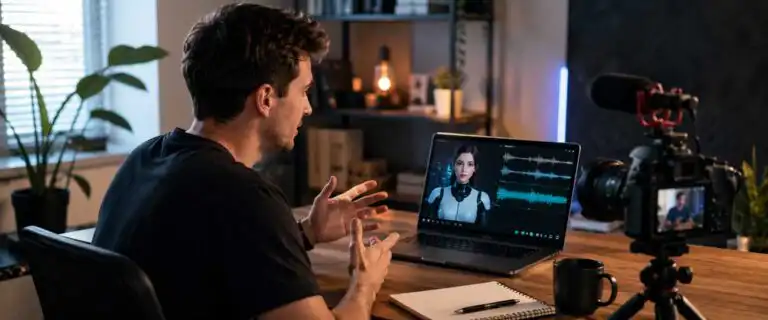
A convincing HeyGen or ElevenLabs video is not created with a single prompt. ElevenLabs produces the narration, HeyGen turns that narration into an avatar performance, and an editor controls the pacing, cutaways, captions and visual evidence that make the finished video credible.
This workflow shows how to build human-like AI presenter videos without having to record every episode on camera. It covers source research, script preparation, voice cloning, avatar capture, audio-led rendering, B-roll editing, quality control and publishing for YouTube, Instagram, TikTok and LinkedIn.
The process is best suited to experts, founders, educators, agencies and creators who already have useful knowledge but cannot repeatedly stop work to film content. It reduces the filming burden. It does not remove the need for subject knowledge, editorial judgement or final approval.
Difficulty Intermediate Time required 35-45 minutes Estimated monthly cost Approximately £60-£90 Automation level Semi-automated Tools used ChatGPT
ElevenLabs
HeyGen
CapCutOutput formats 1080p MP4 Use case YouTube, LinkedIn, Courses
Quick answer: write and approve the script first, generate the final narration in ElevenLabs, upload that audio to HeyGen, and then edit the avatar render around its weakest moments. Locking the audio before rendering prevents timing issues and avoids wasting generation credits on videos that need to be redone.
| Production stage | Primary tool | Human decision | Output |
|---|---|---|---|
| Topic research | Existing content library and an AI writing assistant | Choose a useful angle with evidence behind it | Approved topic and hook |
| Script production | Claude, ChatGPT or another writing model | Rewrite for accuracy, voice and spoken delivery | Locked video script |
| Voice generation | ElevenLabs | Check pronunciation, pace and emphasis | Final narration file |
| Avatar generation | HeyGen | Select the authorised avatar and review the test render | Raw presenter footage |
| Editing | Descript, After Effects or another video editor | Choose B-roll, hide artefacts and control pacing | Edited master video |
| Publishing | Native social and video platforms | Approve claims, captions, disclosure and platform fit | Platform-specific exports |
The realism bottleneck is rarely the avatar alone. Weak source material, synthetic-sounding sentences, incorrect pronunciation and long uninterrupted shots of the presenter will expose the workflow faster than a minor lip-sync error.
What the HeyGen and ElevenLabs workflow actually produces
This workflow creates a reusable digital presenter based on an authorised face and voice. The presenter can deliver new scripts without requiring the person to record a fresh talking-head video each time.
ElevenLabs handles the vocal performance. HeyGen uses the finished audio to generate the visible presenter and synchronise the avatar’s mouth and movement with the narration. The raw render then moves into a conventional editing process where screen recordings, examples, captions, graphics and B-roll are added.
This is different from cinematic text-to-video generation. Tools covered in our AI video generator comparison create original scenes, camera movement and visual sequences. HeyGen is primarily being used here as a repeatable presenter layer.
The result can support tutorials, explainers, product demonstrations, educational clips, internal training and founder-led social content. It is less convincing for material that depends on spontaneous reactions, emotional vulnerability or an unscripted personal connection.
| Pros | Cons |
|---|---|
| Removes the need to manually film every script. Makes batch production easier. Maintains a recognisable presenter across videos. Supports multilingual and localised narration. Allows one source article or recording to produce several videos | Still requires careful scripting and human approval. Weak avatar moments usually need editing. Cover voice and video generations consume separate allowances. Poor source footage can affect every future render. Unsuitable for using another person’s likeness without permission |
What you need before starting
The basic stack is simple, but the preparation determines whether it becomes a reliable workflow or a collection of disconnected subscriptions.
Core production tools
- HeyGen: generates the avatar performance from the finished narration.
- ElevenLabs: produces synthetic or authorised voice clones.
- An AI writing assistant: turns approved source material into a first script draft.
- A video editor: combines the avatar, B-roll, screen recordings, captions and music.
- A screen recorder: captures product interfaces, websites and demonstrations.
- Shared storage: keeps scripts, narration, raw renders and final exports organised.
Our ElevenLabs review covers its broader voice cloning and text-to-speech capabilities. For this workflow, the most important requirement is not the largest voice library. It is the ability to produce a consistent voice that still sounds appropriate after several paragraphs of narration.
Source material
Do not begin by asking an AI model to invent advice about a broad subject. Start with material the speaker has already created, checked or approved:
- Articles and guides
- Webinar or podcast transcripts
- Loom recordings
- Presentations
- Social media threads
- Frequently asked customer questions
- Product documentation
- Approved client explanations
This source library provides the script with specific examples, terminology, and opinions. It also reduces the risk of publishing a polished avatar video that confidently says something the real person would never endorse.
Permission to use the face and voice
Use your own likeness or one for which you have explicit authorisation. If a client, employee or spokesperson will appear, record what has been approved, where the avatar can be used and who may create new videos.
Permission should cover the face and voice separately. A person agreeing to appear in one campaign has not necessarily agreed to an open-ended synthetic version of themselves being used across future projects.
The complete HeyGen and ElevenLabs workflow
- Choose a proven topic from existing source material.
- Create several hooks and select the strongest angle.
- Draft the script using the source material as the factual boundary.
- Rewrite the draft for spoken delivery.
- Add visual directions for screen recordings, B-roll and text.
- Generate a short ElevenLabs voice test.
- Correct pronunciation, pacing and emphasis.
- Export and approve the final narration.
- Upload the narration to the authorised HeyGen avatar.
- Generate a short test before rendering the complete video.
- Edit around weak avatar moments using relevant visuals.
- Run separate content, audio and picture checks.
- Export versions for each publishing platform.
- Record what worked and apply it to the next script.
The important dependency is audio. The script and narration should be locked before the final HeyGen render begins. Changing the wording afterwards can alter the duration, break the visual timing and force the avatar footage to be regenerated.
Step 1 – Build the script from existing expertise
The strongest idea from the source workflow is to repurpose knowledge the speaker has already expressed rather than manufacture generic scripts from scratch.
A one-hour tutorial can provide several short videos. A detailed article may contain five separate questions worth answering. A social thread can become a three-minute explainer once its assumptions and examples have been expanded.
This approach also creates a useful editorial boundary. The writing model can reorganise, shorten and clarify the material, but it should not add claims that are absent from the source unless someone verifies them separately.
Create a reusable content source library
Organise source material by subject rather than platform. A folder called “local SEO” is more useful than separate folders for LinkedIn posts, YouTube transcripts and articles because the production team can see every approved explanation of the subject in one place.
Each source should include a date, an owner, and an approval status. This becomes particularly valuable for subjects where advice, prices, product interfaces or platform rules can change.
Generate hooks before writing complete scripts
Ask the writing model for several specific angles first. Reject weak hooks before investing time in the script’s body.
Using only the source material below, create 10 video hooks.

Each hook must:
- make one specific promise
- avoid exaggerated claims
- be understandable without extra context
- lead naturally into a practical explanation
- sound appropriate when spoken aloud

Do not write the full scripts yet.
The best hook is not always the loudest. A useful technical promise often outperforms a vague attempt at curiosity because it attracts the audience that is most likely to watch the explanation.
Turn one source into several distinct videos
Do not split one article into five near-identical summaries. Give each video a separate job. One might explain the process, another the main mistake, another the cost, and another the circumstances where the workflow should not be used.
This is also where the DIY AI video generation hub can help with content planning. Avatar videos are only one format. Some ideas are better shown as screen-led tutorials, generated B-roll, product demonstrations or image-to-video sequences.
Step 2 – Rewrite the script for spoken delivery
A script can read well on a page and still sound artificial when narrated. Written sentences often contain more clauses, qualifications and parenthetical points than a speaker would use naturally.
Read the draft aloud before opening ElevenLabs. This catches stiff transitions, repeated words, overlong sentences and phrases that are difficult to pronounce. It also reveals whether the opening reaches the useful point quickly enough.
Use shorter spoken units
Break complex explanations into controlled sentences. This gives the voice model clearer phrasing and gives the editor more places to introduce a visual change.
Avoid writing every sentence at the same length. A sequence of uniform statements creates the recognisable rhythm of synthetic narration even when the voice itself is realistic.
Mark visual opportunities inside the script
Add production instructions before generating the voice:
[AVATAR]for sections where the presenter should remain visible[SCREEN RECORDING]for product or website demonstrations[B-ROLL]for supporting footage[SHOW EXAMPLE]for evidence or comparisons[TEXT]for a phrase that should appear on screen
These notes give the editor a reason for every cutaway. Without them, B-roll often becomes decorative footage that fills time without improving the explanation.
Check the script against the speaker’s real voice
Look for phrases the person would not normally use, unsupported certainty and examples that feel borrowed from another brand. A reusable voice guide can help, but the final test is simpler: would the person willingly say this under their own name?
Step 3 – Generate and approve the ElevenLabs narration
ElevenLabs offers several routes for producing speech, including standard voices and different forms of voice cloning. Choose the route that best fits the required fidelity, account access, and verification process, rather than assuming the fastest clone will suit every project.
For a fuller explanation of the platform’s voice options, see our guide to ElevenLabs plans and credit costs.
Generate a test section first
Do not generate the complete script before testing the most difficult paragraph. Choose a section containing names, abbreviations, technical vocabulary and a change of tone.
Listen through headphones and an ordinary phone or laptop speaker. The voice may sound polished through good headphones but become less clear when heard under the conditions in which the audience will actually consume it.
Correct pronunciation before changing the voice
Problems with names and technical terms do not always mean the clone is poor. First try punctuation changes, spelling adjustments, phonetic wording and shorter sentence boundaries.
Create a shared pronunciation sheet for repeated terms. This is faster than rediscovering the same correction every time a product name appears.
Listen for performance, not only accuracy
The narration can pronounce every word correctly and still feel wrong. Check:
- Does the opening have enough energy?
- Are important statements given room to land?
- Do questions sound like questions?
- Are pauses appearing in sensible places?
- Does the delivery remain consistent between generated sections?
- Does the emotional tone fit the subject?
Generate the narration in manageable sections when the script contains clear topic changes. This makes corrections cheaper and helps the editor replace one weak passage without rebuilding the entire audio track.
Lock the narration
Once the words, timing and pronunciation have been approved, export the final audio and mark it as locked. Any later script change should trigger a new version number rather than silently replacing the file.
A recurring problem reported in creator communities is that lip-sync workflows break when the video duration is set before the final narration is recorded. The safer order is audio first, then avatar performance.
Step 4 – Record a reusable HeyGen avatar
The avatar recording is production source material, not a disposable webcam clip. Defects in the capture can recur in every video generated from it.
Record in a quiet, evenly lit environment with the camera at eye level. Keep the framing stable and avoid dramatic changes in posture. Clothing, background and composition should suit the range of videos the avatar is expected to deliver.
Avatar recording checklist
- Use even front lighting without hard shadows across the face.
- Keep the camera stable and focused.
- Look towards the lens rather than the preview window.
- Use natural facial movement without exaggerated gestures.
- Avoid repeatedly covering the mouth with hair, hands, or objects.
- Wear clothing that does not create visual flicker or fine-pattern interference.
- Leave enough space for vertical and landscape crops.
- Record the required consent material at the same stage.
Do not optimise only for visual realism. Think about how the presenter will be edited. A medium crop may work better than a tight headshot because it gives the editor room to reframe, punch in and position graphics.
Photo avatar or recorded digital presenter?
A photo avatar is faster to create and useful for experimentation. A presenter trained from video is generally the more appropriate choice when the aim is to reproduce a recognisable person’s delivery across a serious content programme.
Run a small production test before committing to a whole series. Generate the same short script with the available avatar options, then judge facial stability, expression, gesture repetition and how long the presenter can remain on screen before the illusion weakens.
Step 5 – Combine the ElevenLabs audio with HeyGen
Open the authorised avatar in HeyGen and upload the approved ElevenLabs narration. Set the required aspect ratio, framing and background before generating a short test.
The purpose of the test is not to judge the entire script. Check the opening, a difficult phrase and a section with stronger emphasis. These are the areas most likely to expose awkward mouth shapes or movement.
- Select the approved avatar.
- Upload the locked narration file.
- Confirm the output aspect ratio.
- Set the avatar position and background.
- Generate a short test scene.
- Check lip-sync, expression and framing.
- Correct the audio or avatar setup if needed.
- Render the complete presenter footage.
- Save the raw export separately from the edited master.
Do not repeatedly regenerate the full video to fix one unattractive second. Mark the weak section for the editor first. A relevant screen recording may solve the problem while making the video more informative.
Use a file naming system from the first video
A simple structure prevents editors from using an outdated script or narration:
topic-platform-version-stage.ext

local-seo-youtube-v01-script.docx
local-seo-youtube-v03-narration.wav
local-seo-youtube-v03-avatar-render.mp4
local-seo-youtube-v05-final.mp4
Keep the version number aligned across the script, audio and render. Do not label files “final”, “final-new” and “final-revised”. That system collapses as soon as more than one person joins the workflow.
Step 6 – Edit around the avatar’s weak moments
Editing is where this workflow becomes convincing. The raw presenter render should be treated like any other source clip, not as a finished video.
Editors should actively look for incorrect lip movement, frozen expressions, repeated gestures, strange transitions and sections where the avatar remains visible for too long. The fastest fix is often to cover the problem with something the audience needs to see.
Use B-roll to explain as well as conceal
Useful cutaways include:
- Product demonstrations
- Website or software screen recordings
- Charts and diagrams
- Close-ups of settings being discussed
- Before-and-after examples
- Relevant photographs
- Generated establishing shots
- Short text summaries
DIY AI’s creative Studio can generate additional image and video assets when suitable footage does not already exist. Generated visuals should still support the spoken point rather than acting as unrelated decoration.
For more complex motion work, our image-to-video generator comparison covers tools that can animate a source image into short supporting clips.
Treat the three-second rule as a diagnostic tool
The transcript describes a target to introduce something new on screen roughly every 3 seconds. This can be useful for fast, short-form content, but following it mechanically results in frantic editing.
A visual change might be a cutaway, crop, caption emphasis, screen recording, graphic or return to the presenter. Make the change when attention or comprehension needs it. A clear demonstration may deserve longer than three seconds.
Add captions after the main edit is stable
Generate captions after major timing changes are complete. Check names, product terminology, punctuation and line breaks manually.
Keep subtitles away from controls and captions added by the publishing platform. A caption style that looks clean in the editing window can become difficult to read once buttons and descriptions are placed over it on a phone.
Choose the editor by workflow complexity
Descript is practical for transcript-led editing, captions and straightforward creator videos. After Effects and traditional timeline editors provide more control where the project relies on motion graphics, layered compositions or heavily designed transitions.
The best editor is the one that lets the team correct weak moments quickly. Advanced visual effects do not compensate for a slow approval process or an editor who does not understand the subject.
Step 7 – Run a two-pass quality check
Do not attempt to review facts, pronunciation, lip-sync, caption placement and music levels simultaneously. Separate the review into content and picture passes.
Pass one – script, claims and audio
| Check | What to look for |
|---|---|
| Factual accuracy | Unsupported claims, outdated information and missing qualifications |
| Brand voice | Phrases or opinions the named presenter would not approve |
| Pronunciation | Names, technical terms, abbreviations and unusual place names |
| Audio continuity | Changes in volume, pace, tone or room character between sections |
| Script continuity | References to visuals that are missing or no longer match the edit |
Pass two – picture and platform fit
| Check | What to look for |
|---|---|
| Lip-sync | Mouth movement that does not match the final narration |
| Avatar stability | Frozen expressions, repeated gestures and facial artefacts |
| B-roll relevance | Footage that distracts from or contradicts the narration |
| Captions | Misspellings, poor line breaks and blocked mobile safe zones |
| Music and effects | Levels that compete with the narration |
| Opening frame | A weak first visual that gives no reason to continue |
| Call to action | A next step that does not match the subject of the video |
Watch the complete video once without stopping. This reveals pacing and credibility problems that are easy to miss when examining the timeline frame by frame. Return to individual sections only after that first uninterrupted review.
Step 8 – Export, publish and repurpose the video
Create a clean master without platform watermarks. Produce separate exports when the aspect ratio, captions, opening pace, or calls to action need to change.
- Instagram Reels and TikTok: use a vertical composition and check mobile interface safe zones.
- YouTube Shorts: connect the short to a relevant longer video where one exists.
- LinkedIn: favour clear professional context over fast visual noise.
- Long-form YouTube: use more screen recordings, examples and visual chapters to prevent avatar fatigue.
- Landing pages: export a clean version that does not refer to platform-specific buttons or comments.
Write the description from the final script rather than a separate generic prompt. The first sentence should state what the video explains. Add relevant detail from the transcript, then provide the next useful action.
AI presenter videos that realistically reproduce a person may need platform disclosure. Review YouTube’s altered or synthetic content guidance during publishing rather than assuming the rules that applied to an earlier video still apply.
Manual publishing is not mandatory, but it keeps the team close to platform-specific settings, disclosure controls and last-minute caption checks. Automate distribution only after the manual process is stable.
Solo workflow versus team workflow
The source workflow uses separate people for strategy, scriptwriting, short-form editing and long-form editing. A solo creator can use the same stages without copying the same staffing model.
| Responsibility | Team version | Solo version |
|---|---|---|
| Topic research | Strategist reviews proven formats and audience questions | Weekly research and content-library review |
| Scriptwriting | Writer drafts from approved source material | AI first draft followed by a personal rewrite |
| Voice and avatar | Producer generates and organises assets | Batch narration and avatar session |
| Short-form editing | Dedicated editor uses established templates | Reusable Descript or timeline template |
| Long-form editing | Separate editor manages B-roll and pacing | Separate project template with visual chapters |
| Final approval | Brand owner approves the finished video | Checklist review before scheduling |
The critical factor is not team size. It is the presence of clear hand-off points:
- Topic approved
- Script approved
- Narration approved
- Avatar render approved
- Edited video approved
- Publication copy approved
Late script changes are expensive because they move backwards through several stages. Assign an owner to each stage and define what “approved” means.
What can be automated and what should remain human
This is a semi-automated production system. Trying to remove every human decision usually increases output while reducing accuracy and credibility.
| Suitable for automation | Keep under human control |
|---|---|
| Transcript extraction Initial hook suggestions First script drafts Voice generation Avatar rendering Initial caption generation File copying and notifications Template-based resizing | Editorial angle Factual verification Consent and access Final script language Pronunciation approval B-roll selection Weak-render detection Brand and disclosure decisions |
The recurring insight from real creator workflows is that a stack of specialist tools usually works better than forcing one platform to write, narrate, animate and edit the entire video. Each additional handoff adds administrative overhead, but it also lets the team replace a weak component without rebuilding the whole system.
See more of our reporting in Google Top Stories, AI Overviews and AI Mode.
Hidden costs and practical limitations
Subscription price is only one part of the cost. The workflow also uses generation allowances, editing time and review capacity.
- Failed or discarded voice generations
- Avatar tests and repeated renders
- Script research and factual review
- B-roll subscriptions or generation credits
- Music and stock licensing
- Caption correction
- File storage
- Client or stakeholder approval
- Updates when the source information changes
The cheapest production route is not always the lowest-priced plan. A weak narration that takes three correction cycles can cost more in staff time than a higher-quality voice generated correctly on the first attempt.
Review AI audio tools by production task before assuming ElevenLabs must handle every audio job. Narration, cleanup, podcast editing and music generation require different controls.
Long-form content also changes the economics. A 30-second clip can keep the avatar visible for much of its duration. An eight-minute video needs more examples, B-roll, structure and editorial work. Extending the script does not automatically create a useful long-form format.
Common HeyGen and ElevenLabs workflow problems
| Problem | Likely cause | Practical fix |
|---|---|---|
| The voice sounds unlike the speaker | Weak source audio, unsuitable voice method or inconsistent settings | Improve the source recording and test one difficult paragraph before generating the full script |
| Names are pronounced incorrectly | No pronunciation preparation | Use phonetic wording, punctuation changes or a shared pronunciation sheet |
| The lip-sync looks wrong | The audio changed after the video timing was established or the render struggled with a phrase | Lock the narration first, regenerate the affected section or cover it with relevant B-roll |
| The presenter looks unnatural | Poor avatar footage or excessive uninterrupted screen time | Improve the source capture and use more purposeful cutaways |
| The video sounds generic | The script was generated from a broad prompt | Base it on approved transcripts, articles, examples and opinions |
| The edit feels frantic | The three-second rule was followed without editorial judgement | Keep visual changes tied to attention or comprehension |
| Captions contain repeated errors | Technical vocabulary was never added to a project glossary | Maintain a correction list for names, brands and specialist terms |
| Generation credits are being wasted | Full renders begin before the script and audio are approved | Add mandatory script, test audio and test render approval stages |
| The content does not sound like the expert | The first AI draft was treated as finished copy | Require a subject-aware rewrite and owner approval |
| Production stalls during review | No stage owner or approval deadline | Assign one accountable reviewer to each stage |
Common mistakes to avoid
Trying to hide every sign of AI generation
The objective should be a clear, authorised, and useful video, not one that deceives viewers into believing a live recording took place. Excessive focus on concealment can create unnecessary brand and disclosure risk.
Leaving the avatar on screen for the whole video
Even strong avatar footage becomes visually repetitive. Screen recordings, demonstrations, and evidence make the explanation more useful while reducing the time viewers have to notice minor artefacts.
Writing without visual evidence
A script may mention a product, chart or setting without showing it. The editor is then forced to find generic footage. Add the visual requirement during scripting, not after the avatar has been rendered.
Changing the script after generating the video
This is one of the most expensive workflow errors. The revised words affect the narration duration, avatar timing, captions and edit. Approve the script and voice before moving into video generation.
Publishing without a subject expert review
A polished synthetic presenter can make an incorrect claim appear more authoritative. Someone who understands the subject must check the script and final edit.
Using one template for every platform
The same clean master can support several channels, but the opening pace, caption position and call to action may need to change. Our guide to AI advertising video workflows explains why paid and organic videos also require different structures.
Consent, access and brand protection
Store avatar and voice access as carefully as account passwords. Restrict who can generate new material and remove access when a contractor, employee or agency relationship ends.
For each synthetic presenter, document:
- Who owns the face and voice
- Who provided consent
- Which channels may use the avatar
- Which subjects are approved
- Who can generate new speech
- Who gives final publication approval
- What happens when the agreement ends
Do not use the avatar to create a personal endorsement, opinion or statement the real person has not approved. Authorisation to create an avatar is not unlimited editorial permission.
For sensitive topics, consider keeping the real speaker in the workflow. A genuine recording may be more appropriate for apologies, legal statements, health information, crisis communication and personally significant announcements.
Is this workflow right for you?
This workflow is a strong fit when:
- The expert has useful source material but limited filming time.
- The videos explain repeatable subjects.
- A competent editor or editing process is available.
- The same presenter will be used regularly.
- The content naturally includes demonstrations or screen recordings.
- The organisation has a clear approval process.
- Batch production would reduce operational disruption.
Choose another approach when:
- The material depends on spontaneous emotion or personal interaction.
- The speaker’s live presence is the main reason people watch.
- No one is available to verify facts or review the output.
- The plan relies on publishing unedited avatar renders.
- The face or voice has not been properly authorised.
- Each video discusses sensitive or rapidly changing information.
Some productions will benefit from mixing avatar footage with generated scenes. The best text-to-video tools are better suited to original B-roll and illustrative sequences than they are to maintaining a consistent presenter throughout a complete tutorial.
HeyGen and ElevenLabs production checklist
Before production
- Topic validated
- Source material gathered
- Face and voice rights confirmed
- Hook selected
- Claims checked
- Script approved
- Visual directions added
Voice and avatar production
- Difficult pronunciations identified
- Test narration approved
- Final narration exported and locked
- Correct avatar selected
- Aspect ratio confirmed
- Test render reviewed
- Raw avatar render saved
Editing
- Weak avatar moments marked
- Relevant B-roll added
- Screen recordings checked
- Captions corrected
- Music rights confirmed
- Mobile preview completed
- Clean master exported
Publishing
- Platform-specific version created
- Description reviewed
- Disclosure requirement checked
- Final approval recorded
- Published file archived
- Performance observations logged
Frequently asked questions
Can you use ElevenLabs audio in HeyGen?
Yes. Generate and approve the narration in ElevenLabs, export the audio file, and upload it to the appropriate HeyGen project or scene. HeyGen then creates the avatar’s performance based on that audio.
Do you still need a video editor?
Simple presenter videos can be assembled with template-based tools, but a capable editor substantially improves consistency. Editing is needed to add demonstrations, correct pacing, manage captions and cover weak avatar moments.
Is an ElevenLabs voice clone better than recording your real voice?
A clone is more scalable because the speaker does not need to narrate every script. A real recording usually provides better control over emotion, unusual pronunciation and sensitive statements. A mixed workflow can use synthetic narration for routine videos and the real voice for high-value or personal material.
Can this workflow create long-form YouTube videos?
Yes, but long-form production requires more than a longer script. It needs stronger structure, visual chapters, demonstrations, examples and varied pacing. The avatar should act as the presenter connecting those elements rather than occupying the screen continuously.
Can the complete workflow be automated?
Transcription, drafting, file handling, voice generation, avatar rendering and initial captions can be automated. Editorial angle, factual review, pronunciation approval, weak-render detection, consent and final brand approval should remain human-controlled.
Should you publish AI-avatar videos on a new account?
A new topic-specific account can reduce risk while testing formats, but it begins without an established audience. An existing account provides distribution but requires greater care, as viewers already have expectations about the person and the content. The decision depends on brand risk and topic focus, not on a technical HeyGen requirement.
How often should you publish?
Publish at the rate your review process can support. One accurate, well-edited video is more valuable than several weak renders built only to maintain a daily schedule. Batch production helps, but quality control must scale with output.
Final verdict
The effective HeyGen and ElevenLabs workflow is not “write a prompt and publish an avatar”. It is an audio-led production system with clear approval gates.
Build scripts from material the expert has already created. Rewrite them for speech. Approve the ElevenLabs narration before opening the final HeyGen render. Then assume the avatar footage will need a conventional edit with screen recordings, captions, examples and B-roll.
HeyGen and ElevenLabs can remove repeated filming from the production cycle. They cannot replace the judgement that decides what the presenter should say, what the audience needs to see and whether the finished video is accurate enough to publish under a real person’s name.
